Complete Costing
Process costing requests and finalize pricing in PackWares CMS.
Open in AppLearn how to process costing requests in PackWares CMS. Complete the costing process to enable quotation generation.
Accessing Costing Requests
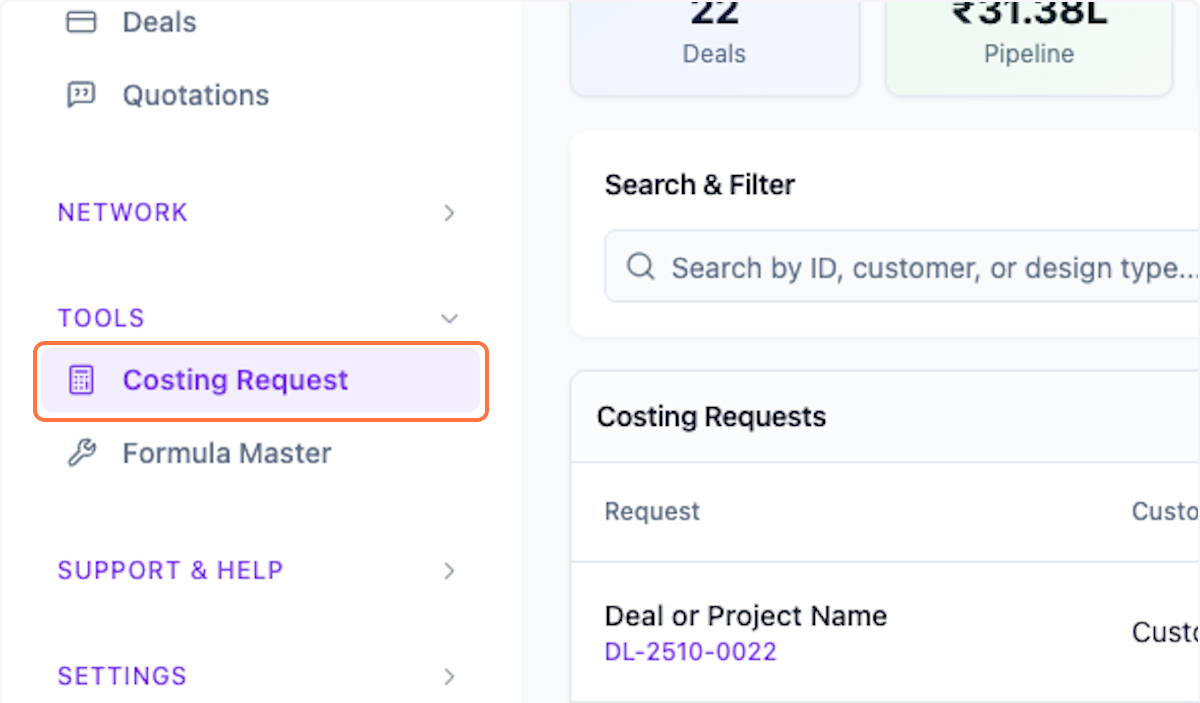
Step 1: Open Costing Request
Click on Costing Request from the menu.
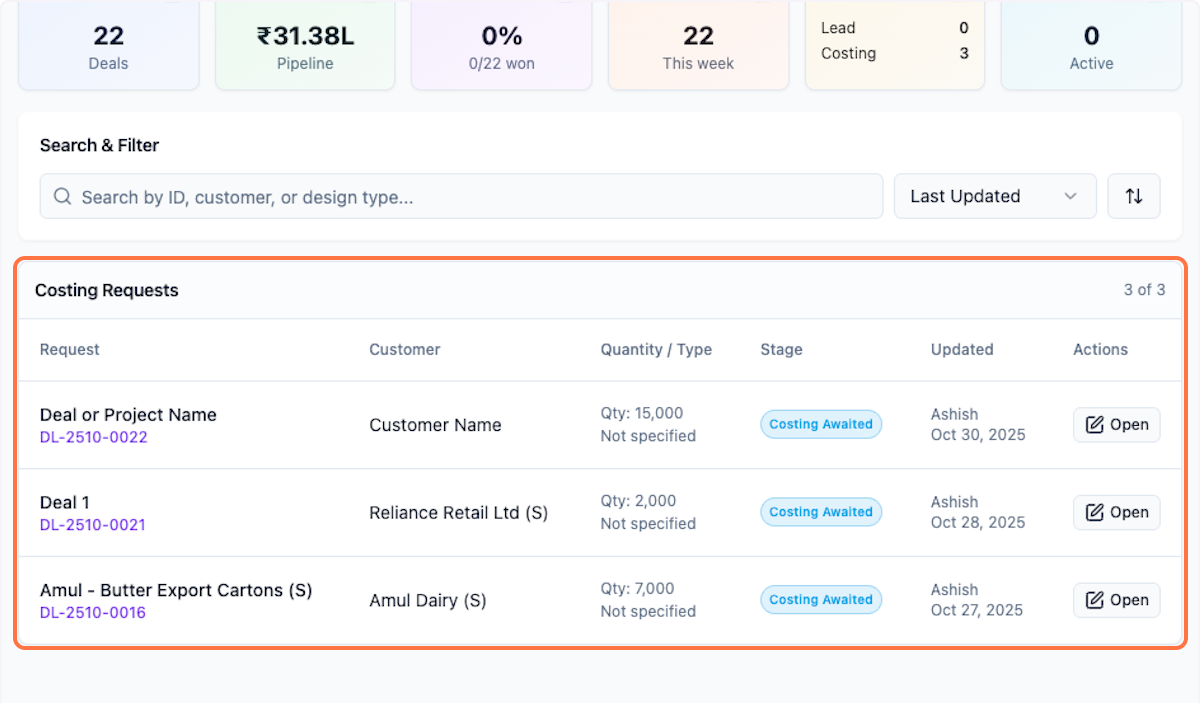
Step 2: View Pending Requests
View list of requests pending for your action.
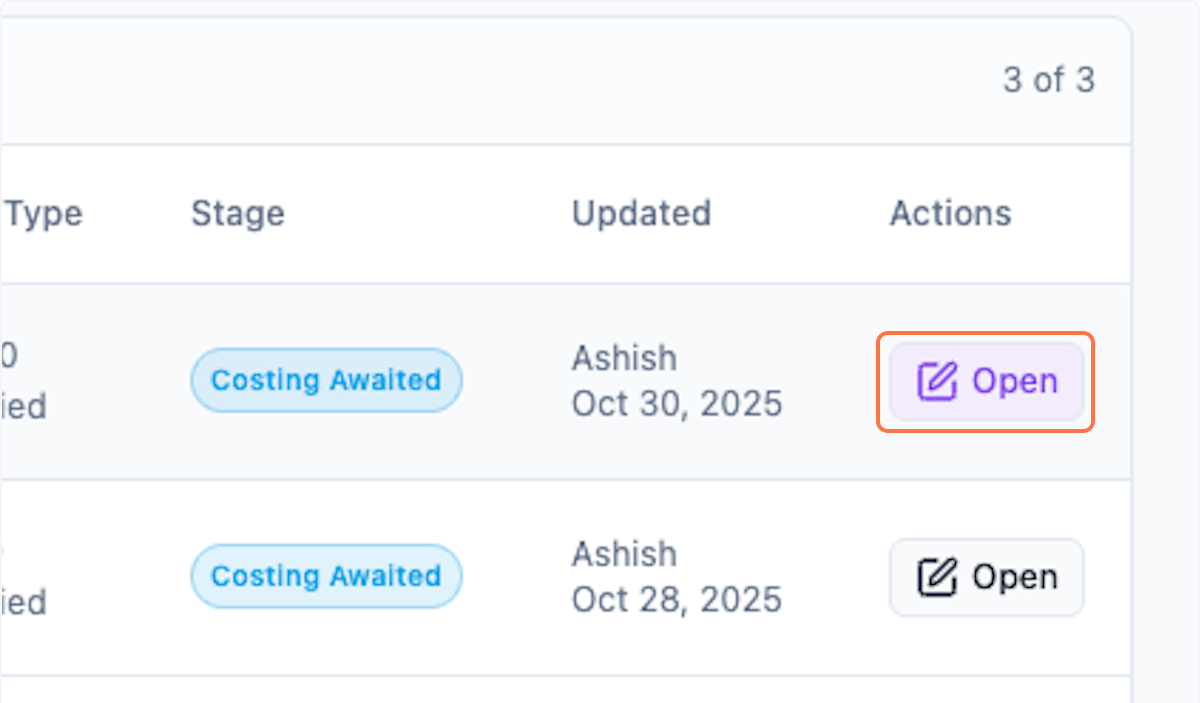
Step 3: Open Request
Open the one you want to work on.
Review and Update Details
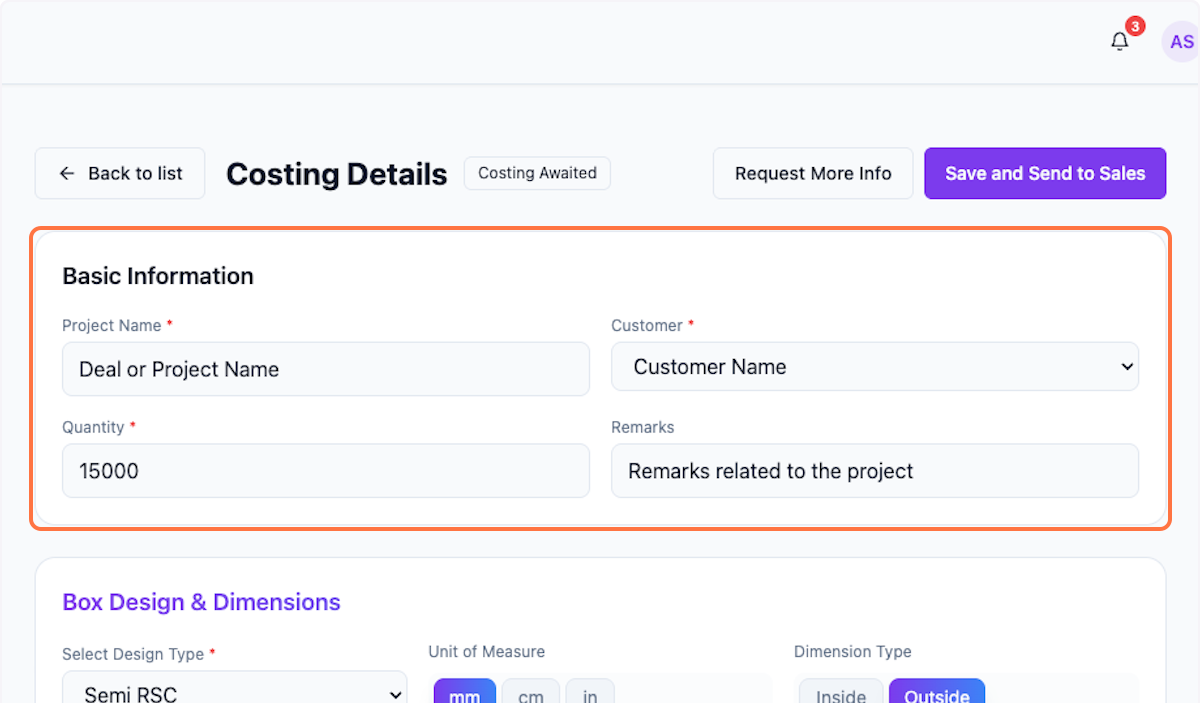
Step 4: Check Basic Information
Review the basic information for the request.
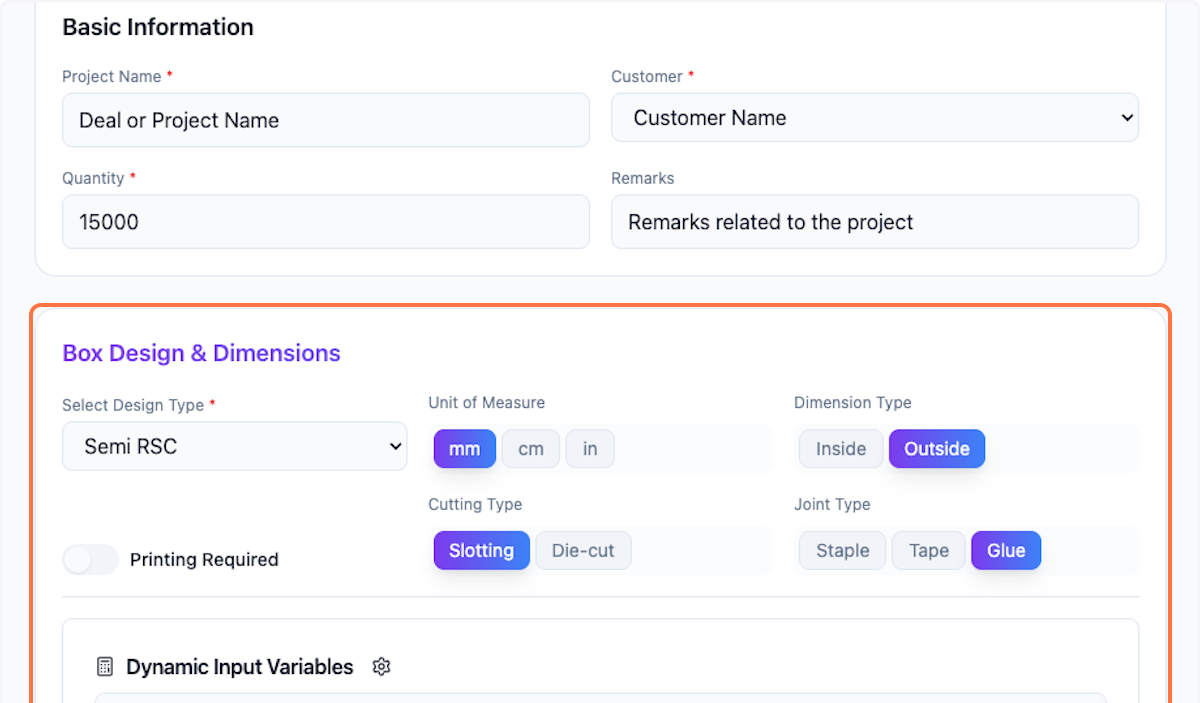
Step 5: Check Box Design
Check Box Design & Dimensions. Edit if required.
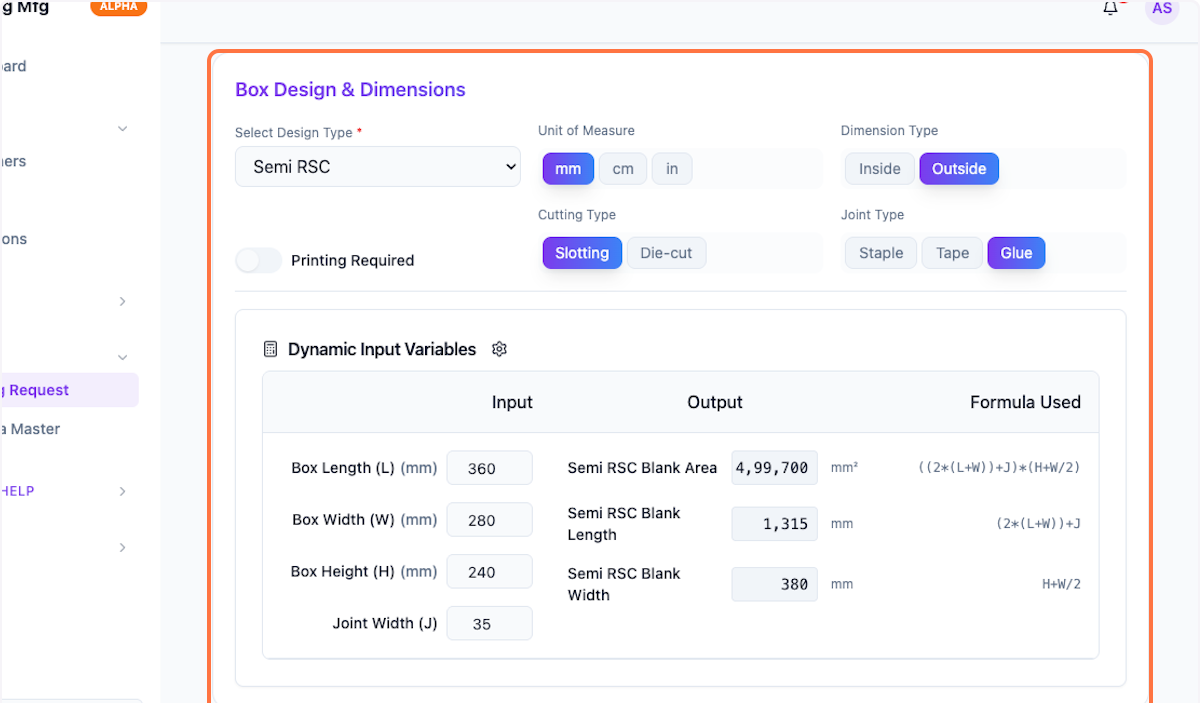
Step 6: Verify Dimensions
Verify all dimensions are correct. Edit if required.
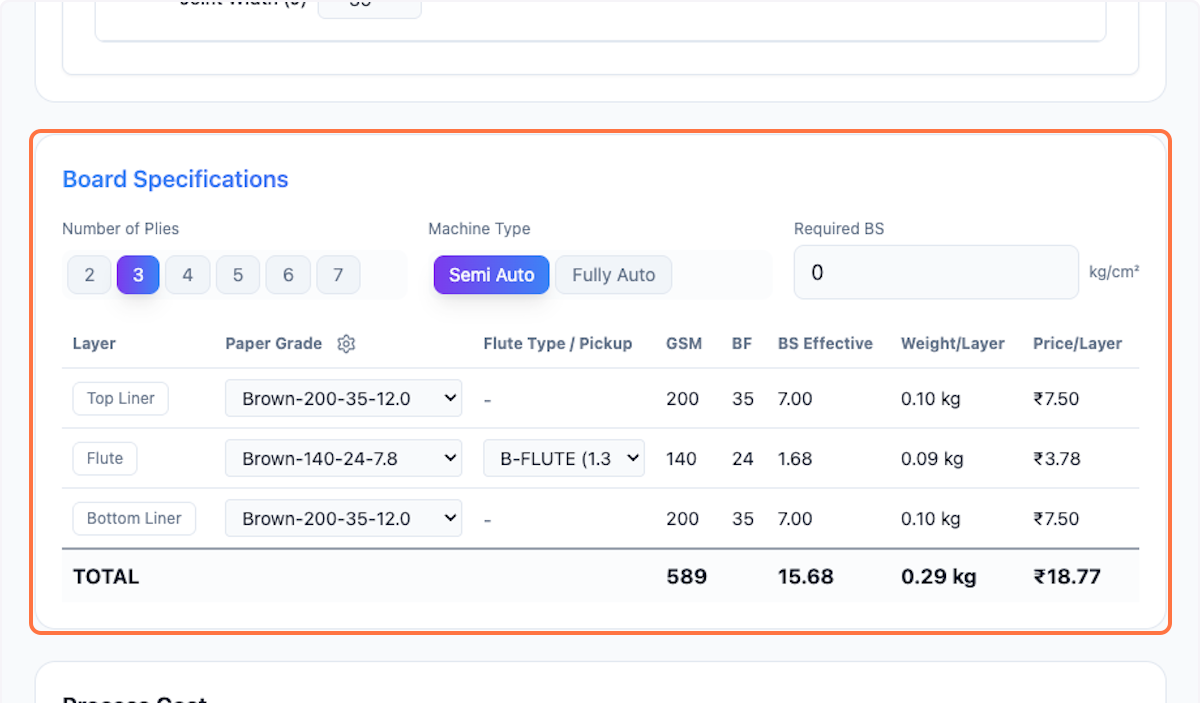
Step 7: Check Board Specifications
Check Board Specifications. Edit if required.
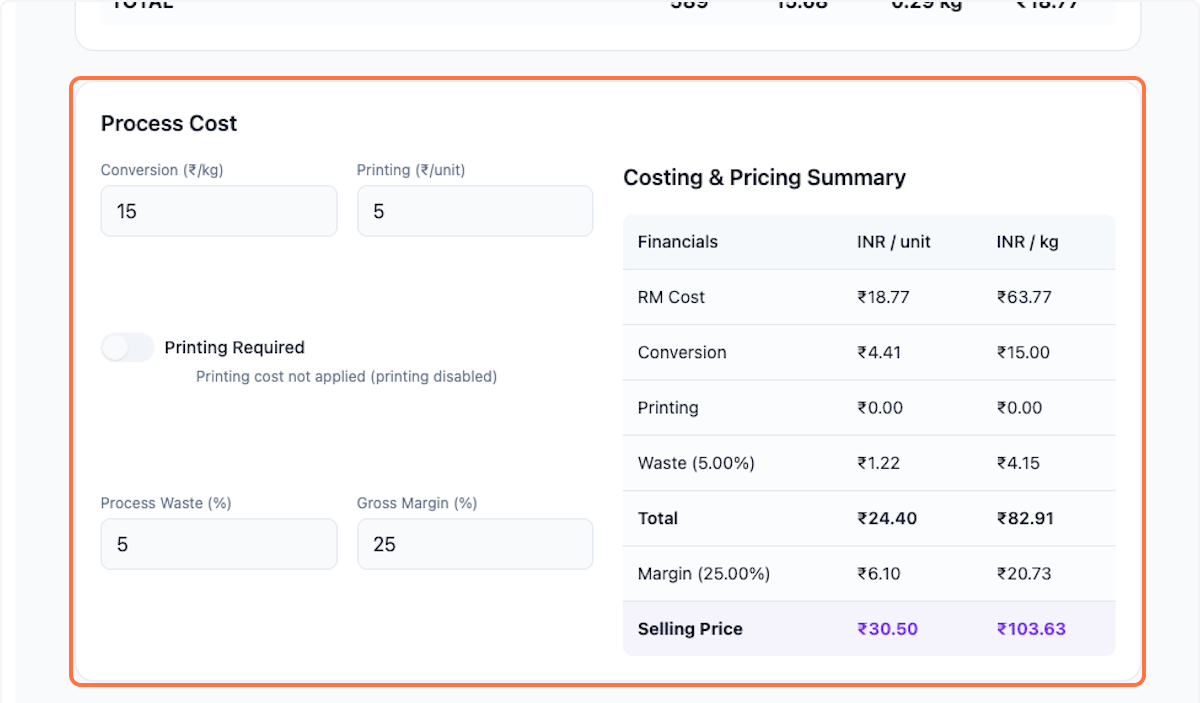
Step 8: Update Process Cost
Check and update Process Cost as needed.
Finalize and Send
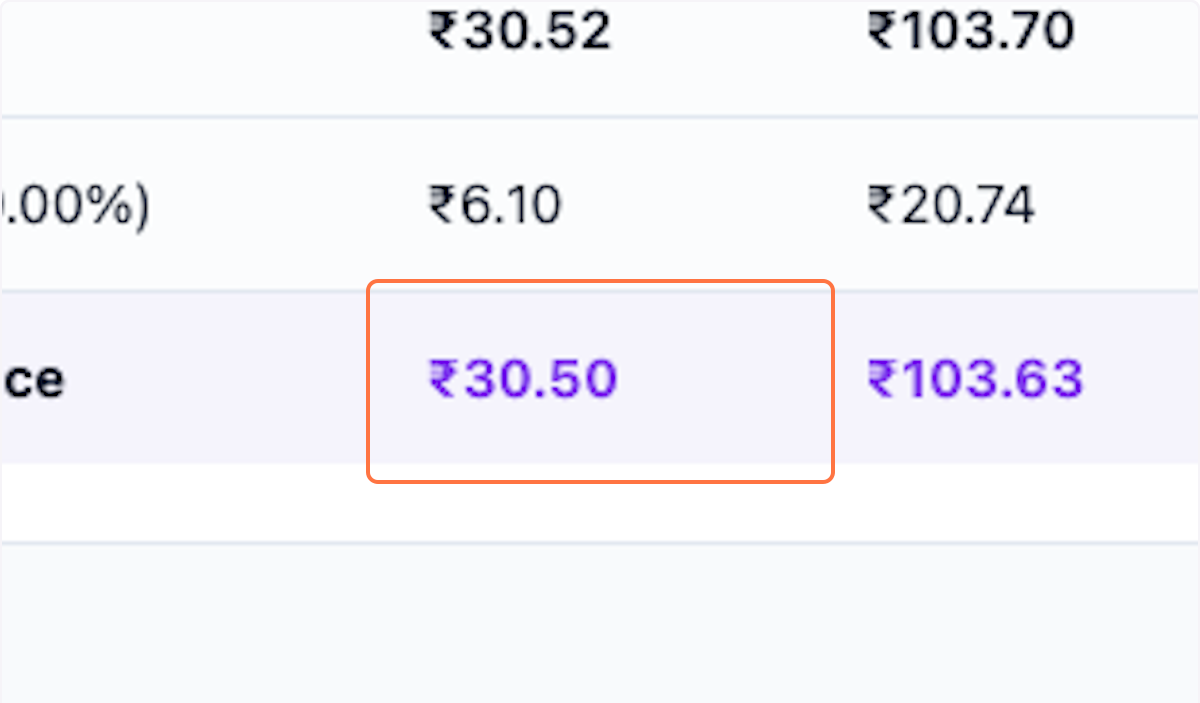
Step 9: Review Final Price
Review the final calculated price.
Step 10: Save and Send
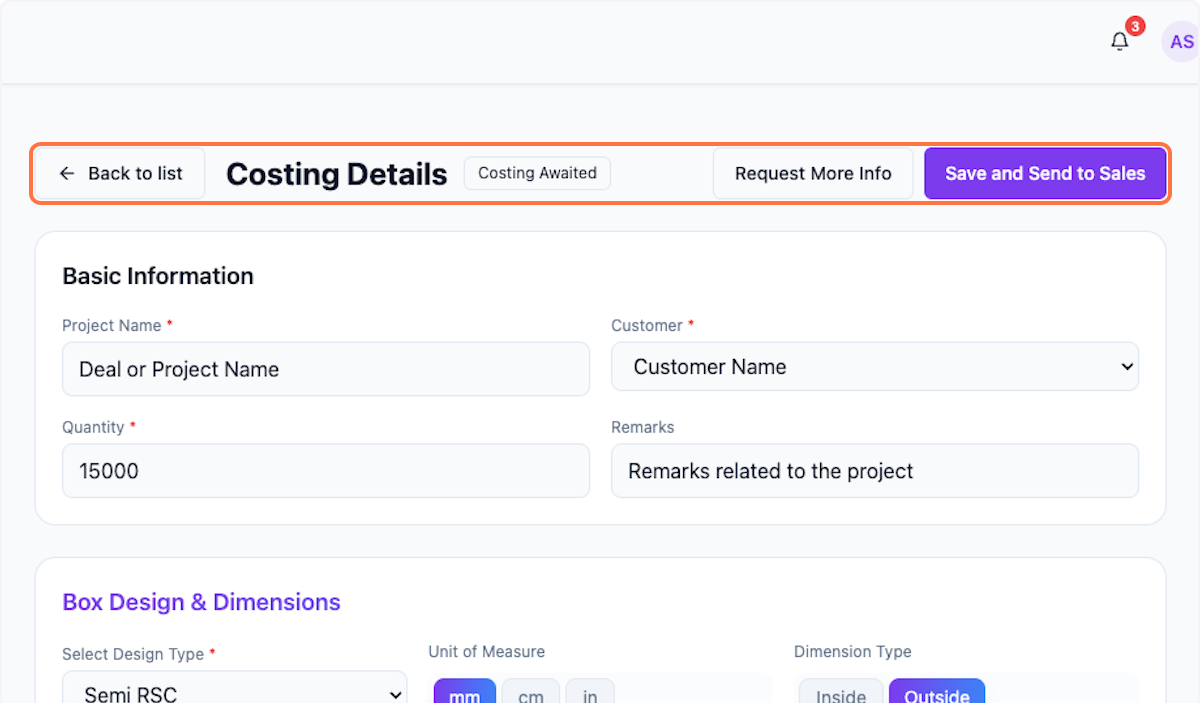
Scroll up and click Save and Send to Sales to complete the costing.
What's Next?
After completing costing, the sales team can:
- Review the finalized pricing
- Generate quotations for customers
- Track deal progress through the pipeline
Was this helpful?
Let us know if you need more help.