Generate Quotation
Create professional PDF quotations for customers with one click in PackWares CMS.
Open in AppLearn how to create and download professional quotations in PackWares CMS. Generate branded PDF quotations ready to share with your customers.
Accessing Deals for Quotation
Step 1: Filter by Stage
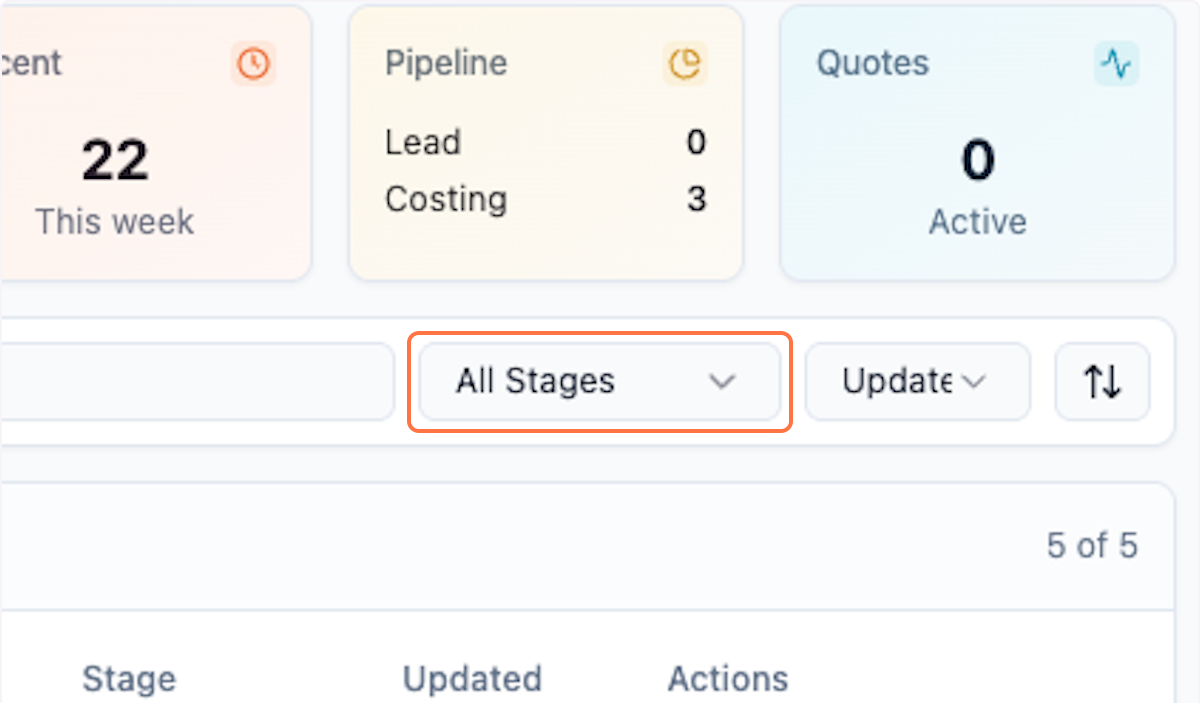
On the Deals page, click on All Stages to filter deals.
Step 2: Select Costing Received
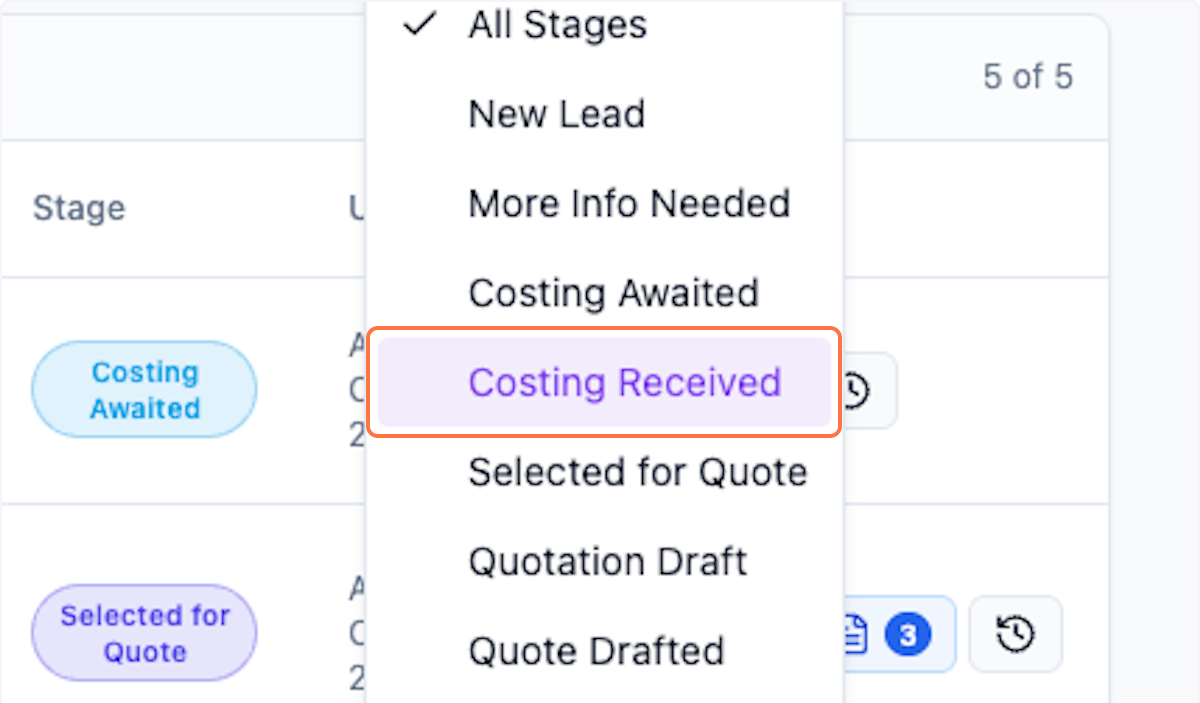
Click on Costing Received to view deals pending your action.
Step 3: View Pending Deals
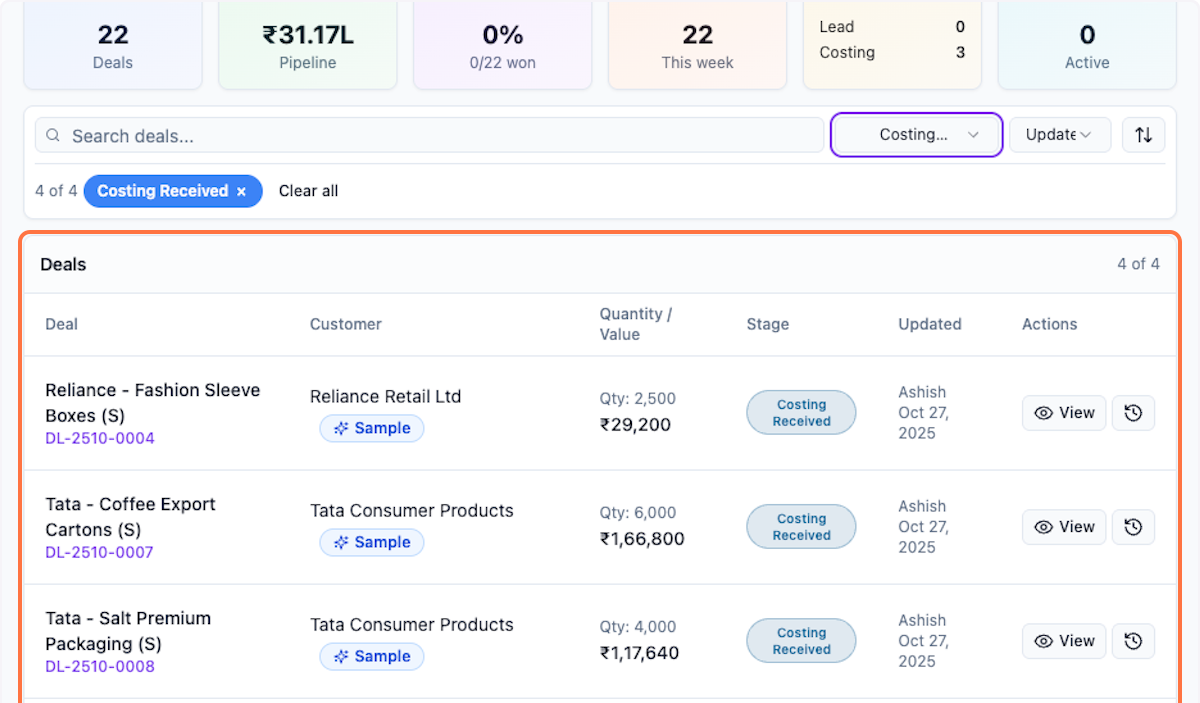
You can now see all the deals pending for your action and ready to quote to customer.
Step 4: Open Deal Details
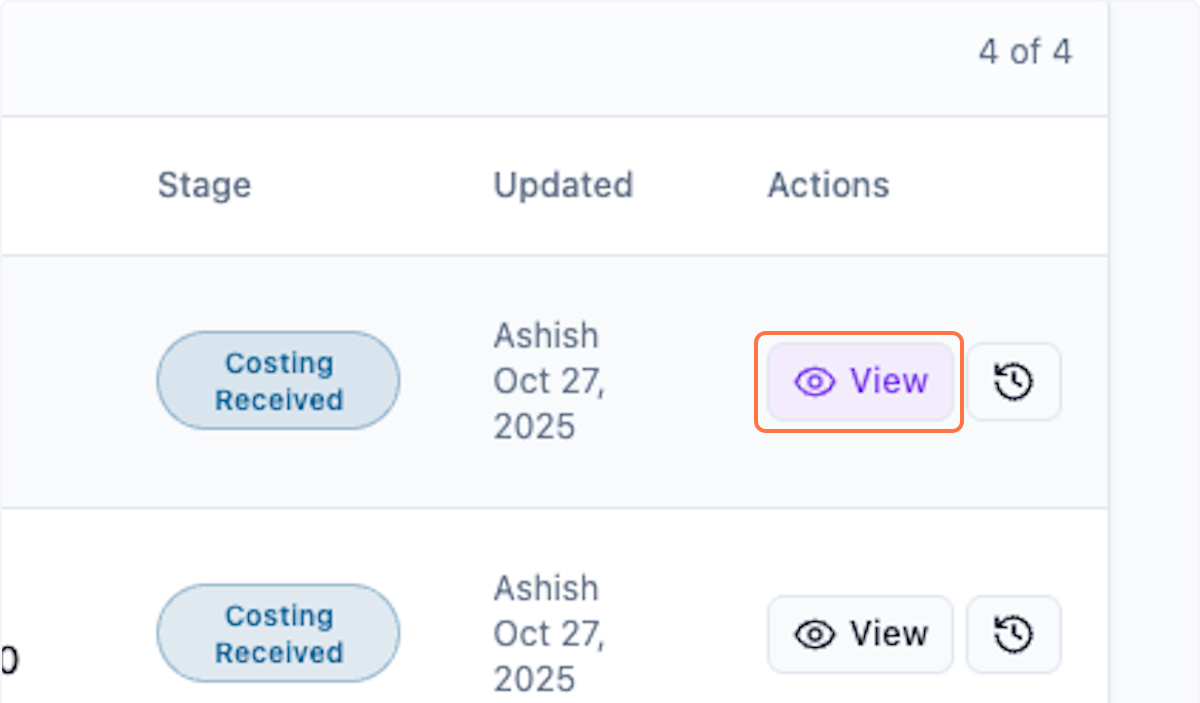
Click View to open the deal details.
Review and Edit Pricing
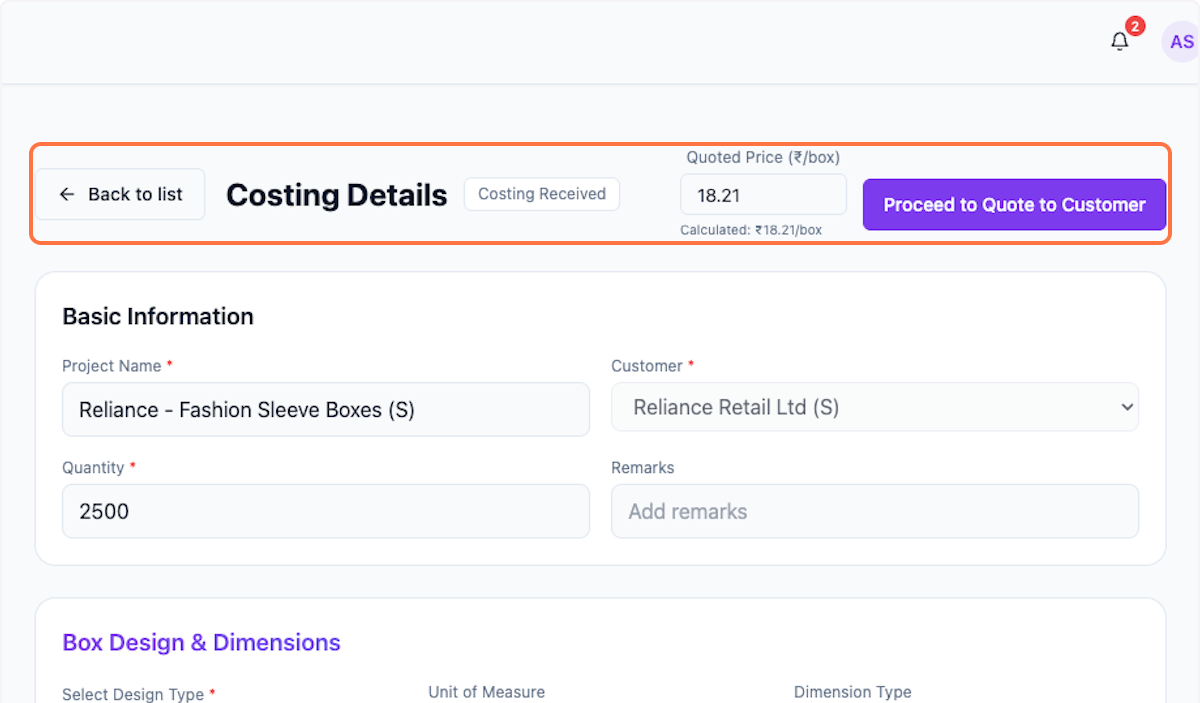
Step 5: Check the Price
Review the price received from costing.
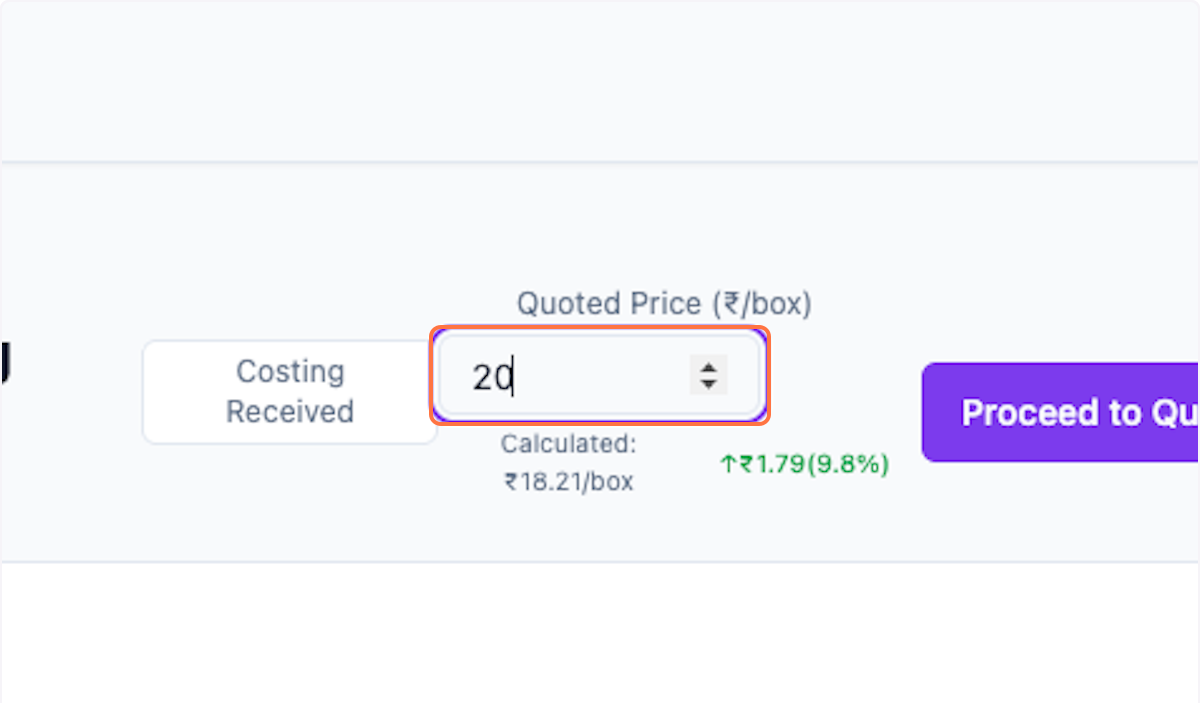
Step 6: Edit Price (Optional)
You can edit the price if needed before generating the quotation.
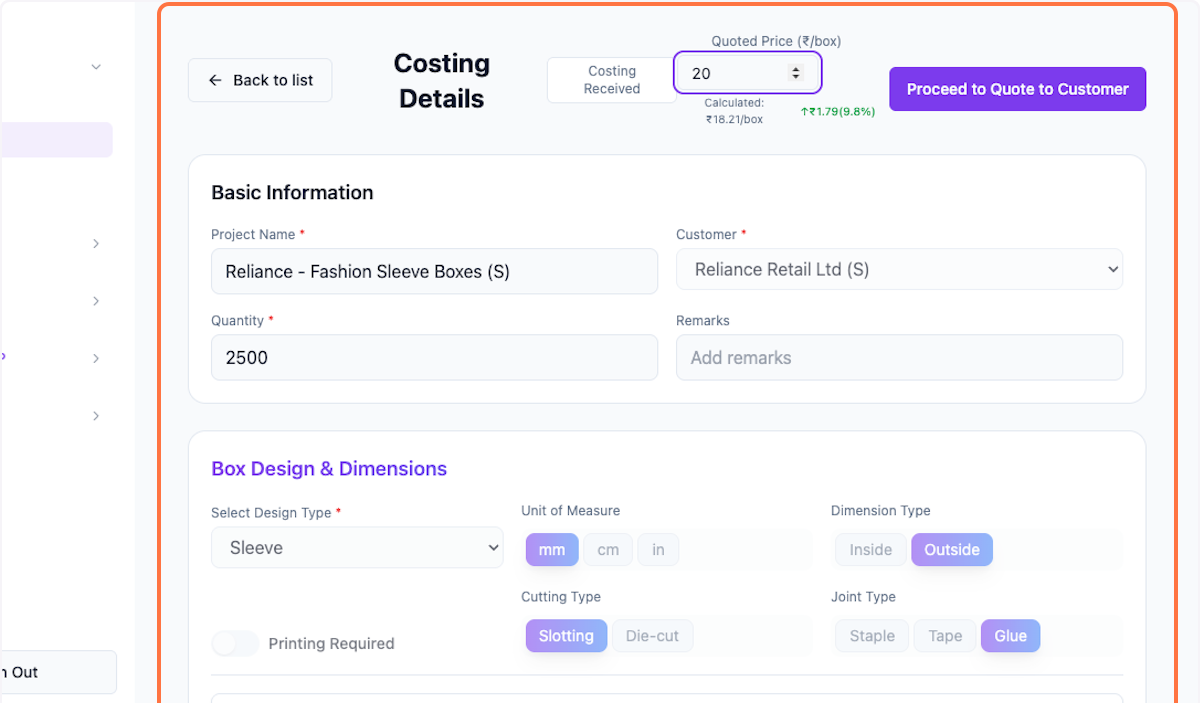
Step 7: Verify Details
Check again if everything is correct as per customer request.
Generate Quotation
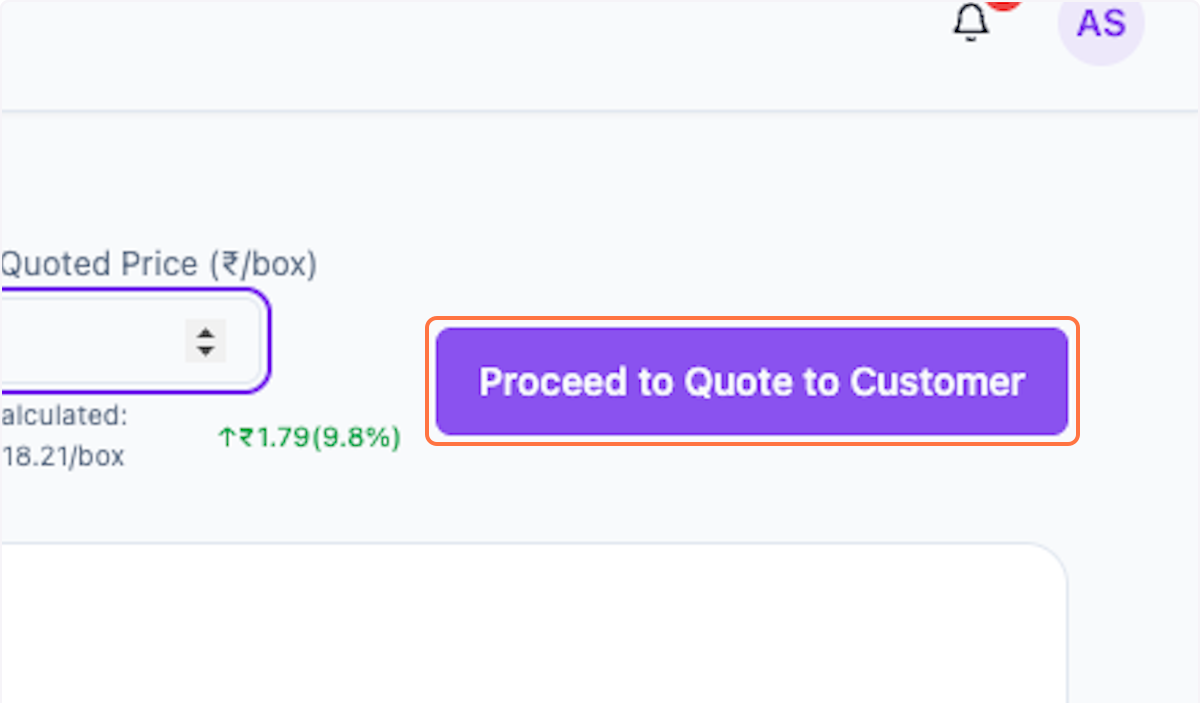
Step 8: Proceed to Quote
Once satisfied, click Proceed to Quote to Customer.
Step 9: Review Popup
A popup window opens. Please check all the details.
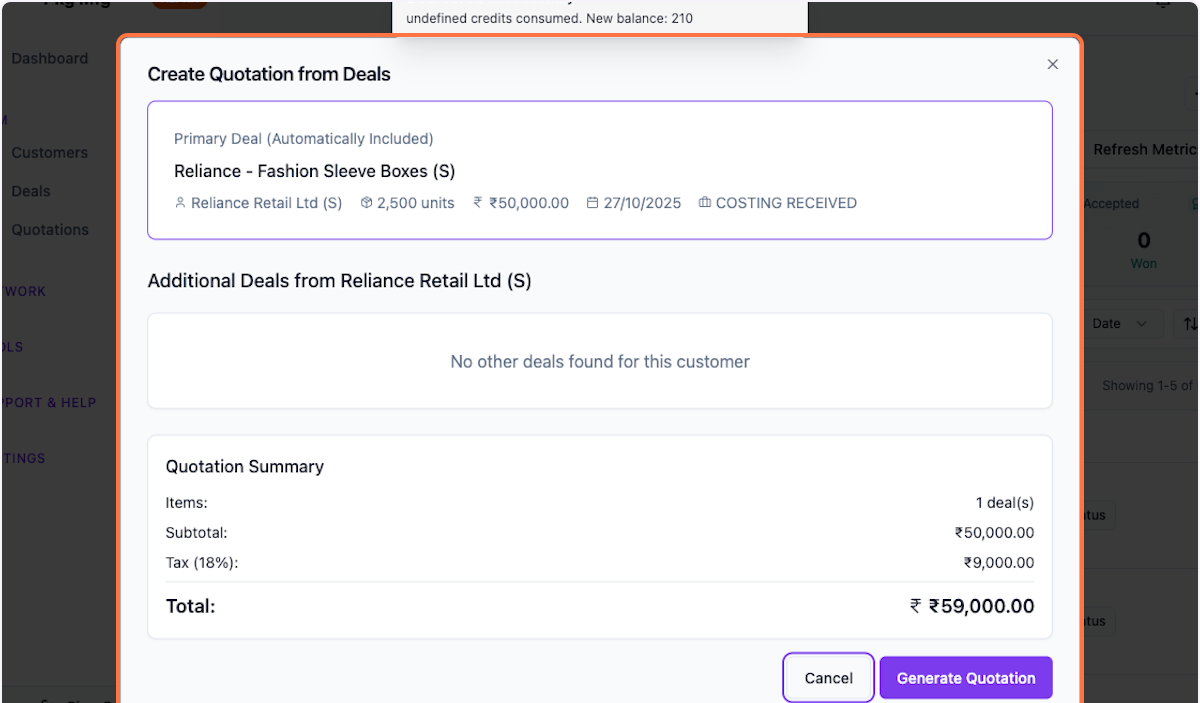
Step 10: View Deal Details
The deal details are shown. Additional deals from the same customer also appear below, giving you the convenience to club them in one quotation.
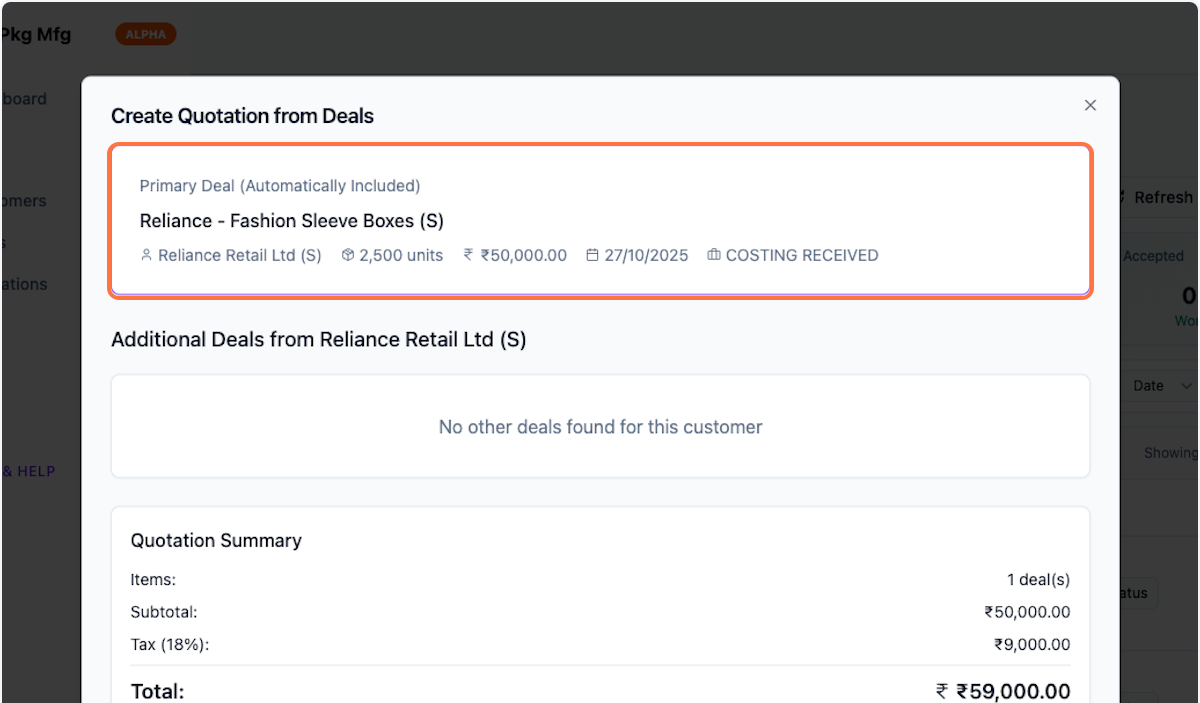
Step 11: Verify Numbers
Check the correctness of all numbers.
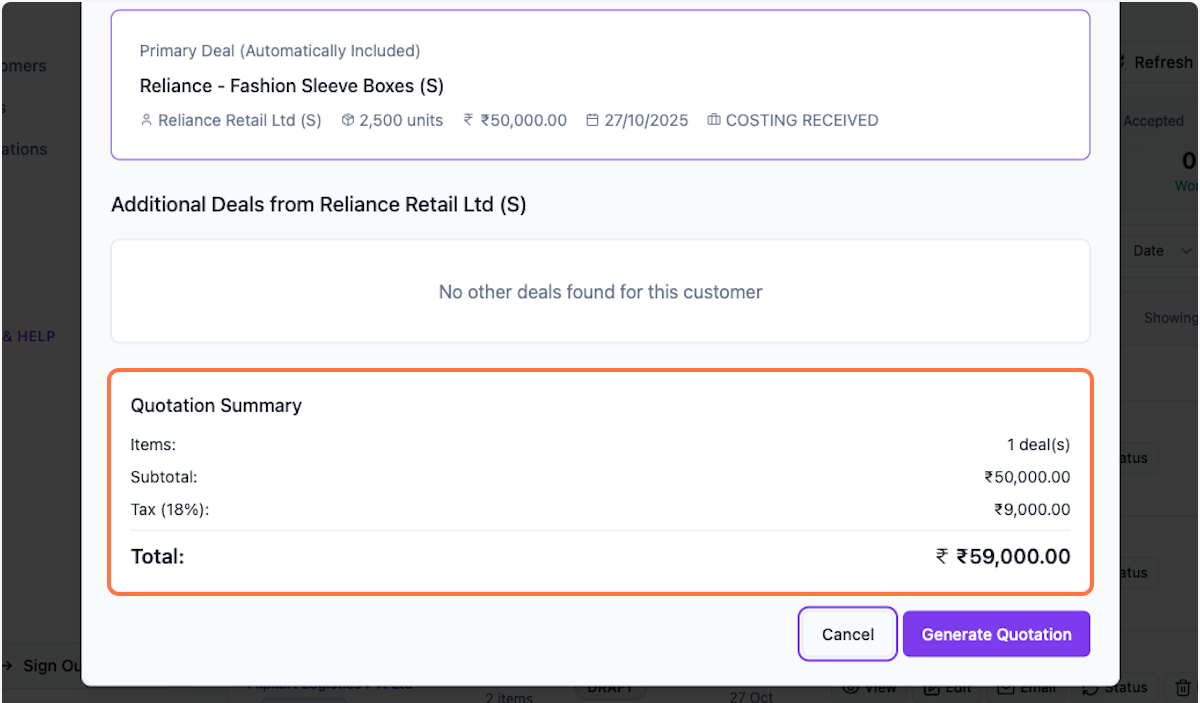
Step 12: Generate Quotation
Once satisfied, click Generate Quotation.

Download and Share
Step 13: Preview Quotation
A quotation preview appears. Check all the details.
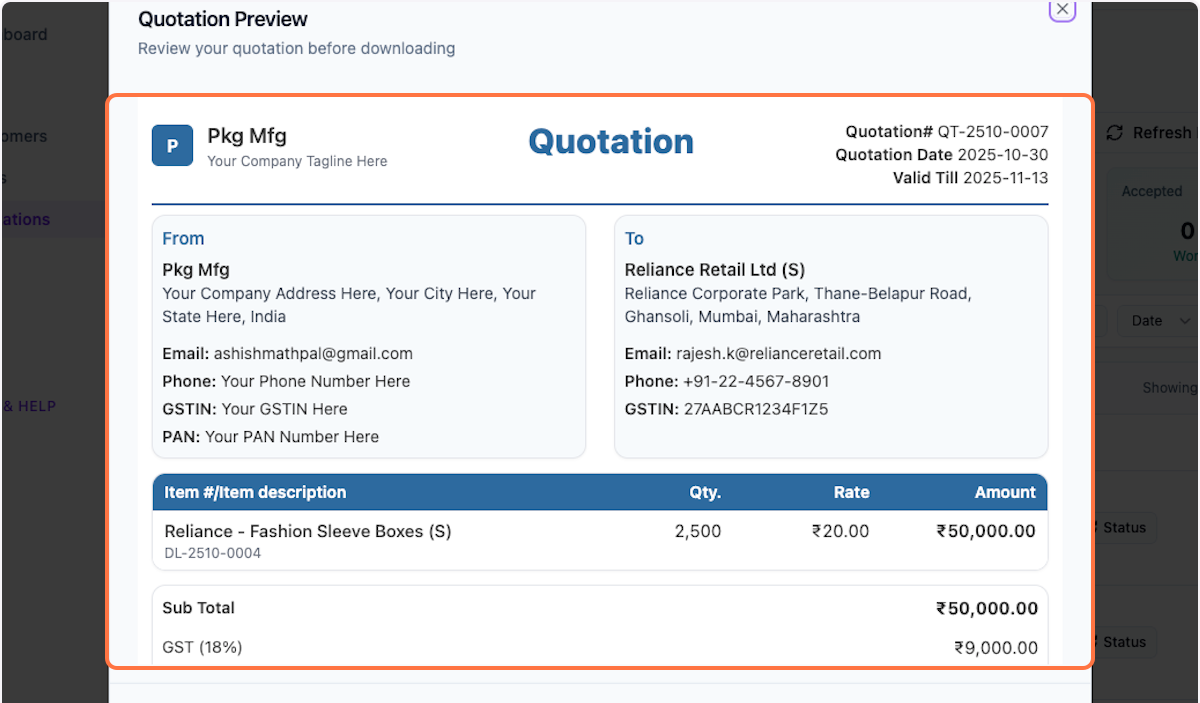
Step 14: Review Full Details
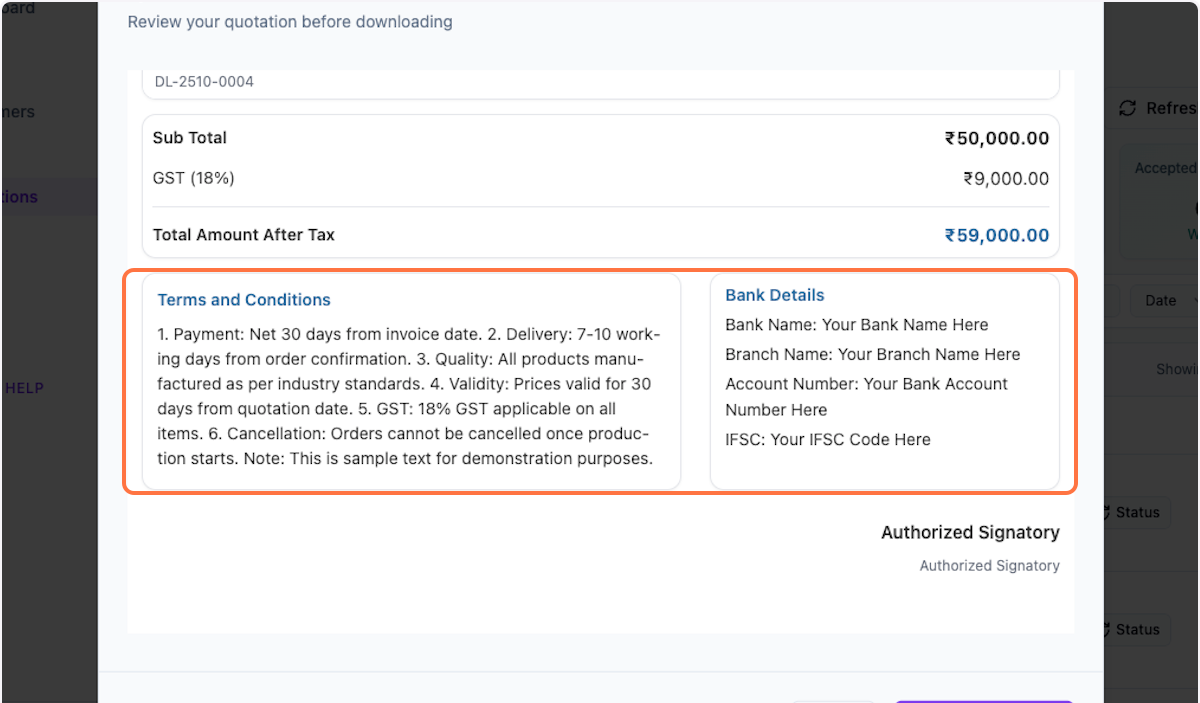
Scroll down to see full details. Update Terms and Conditions and Bank Details in settings for them to display correctly.
Step 15: Download PDF
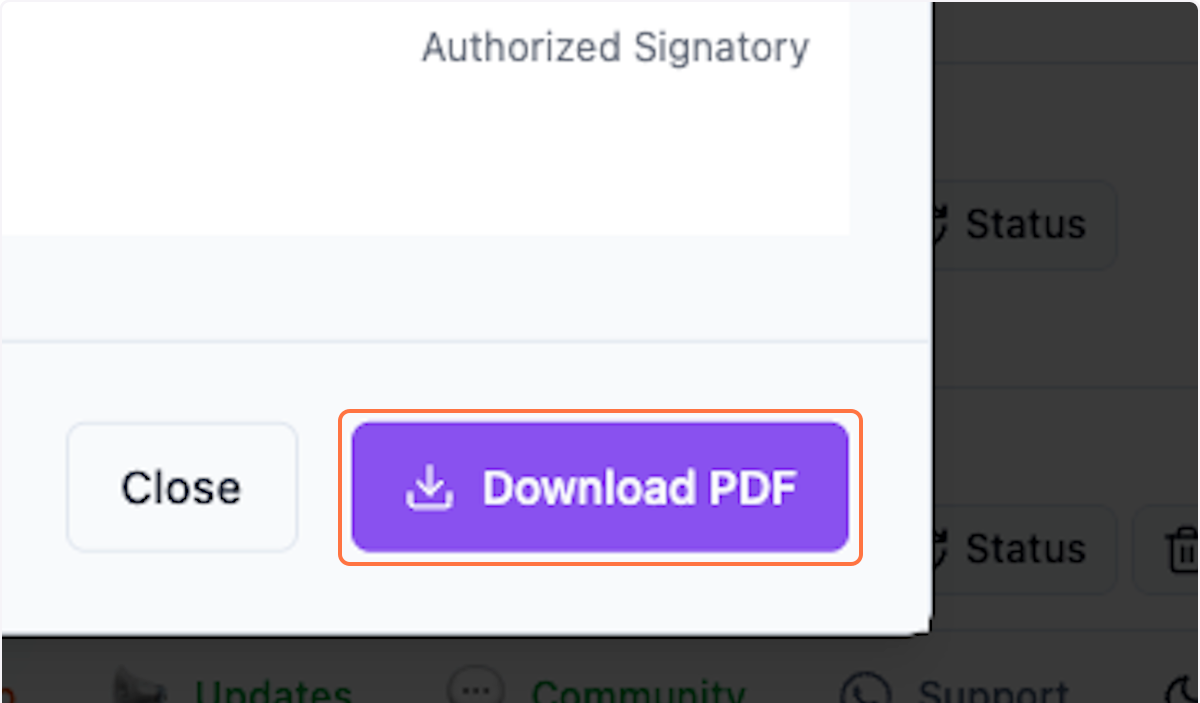
Click Download PDF to get the file ready to share with your customer via email.
Step 16: Close Preview
Click Close to close the preview.
Step 17: View Your Quotations
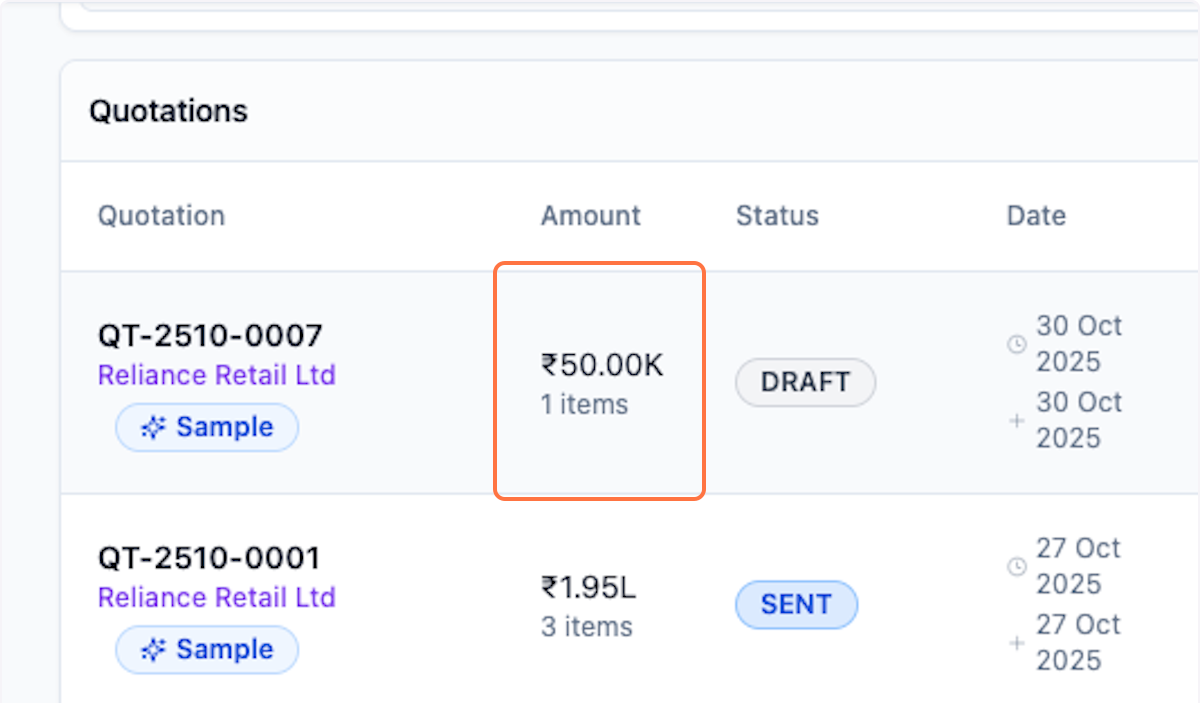
Refresh your browser (Ctrl+F5) to see the latest list of quotations.
What's Next?
After generating a quotation, you can:
- Share the PDF with your customer
- Track quotation status
- Update quotation if needed
- Convert accepted quotations to orders
Was this helpful?
Let us know if you need more help.