Update Quotation
Modify and finalize quotation status in PackWares CMS.
Open in AppLearn how to update and finalize quotation status in PackWares CMS.
Editing a Quotation
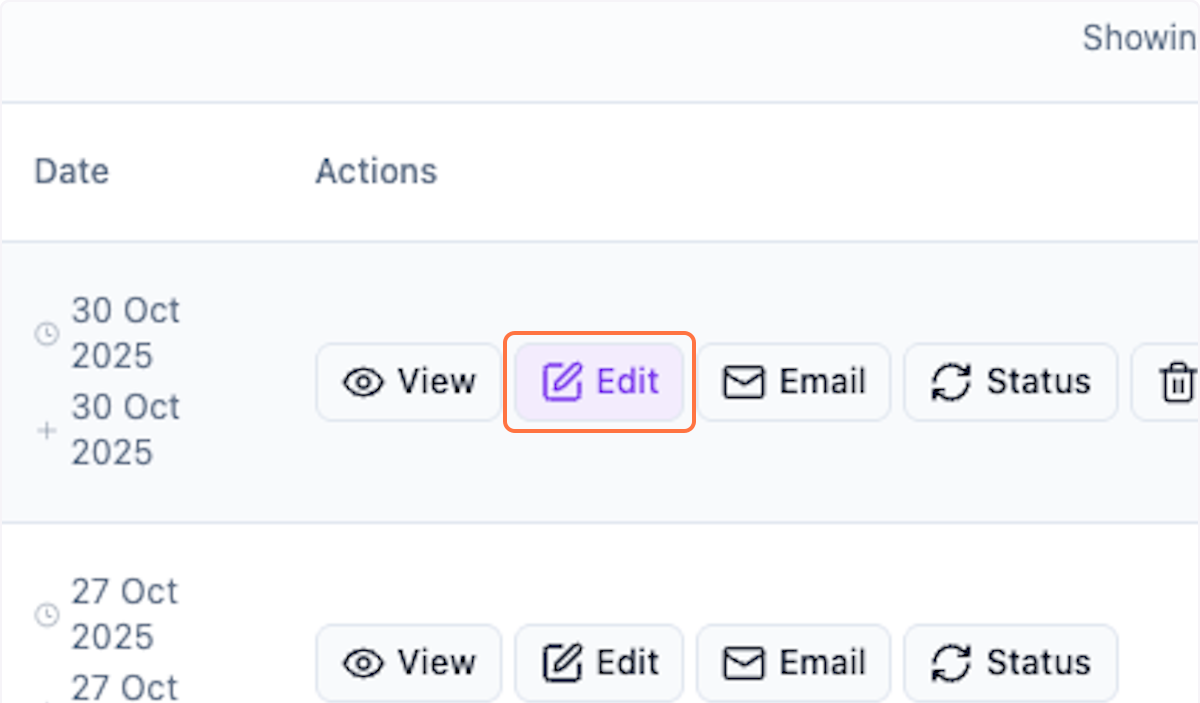
Step 1: Click on Edit
On the Quotation Page, click Edit to modify the quotation.
Step 2: View Edit Mode
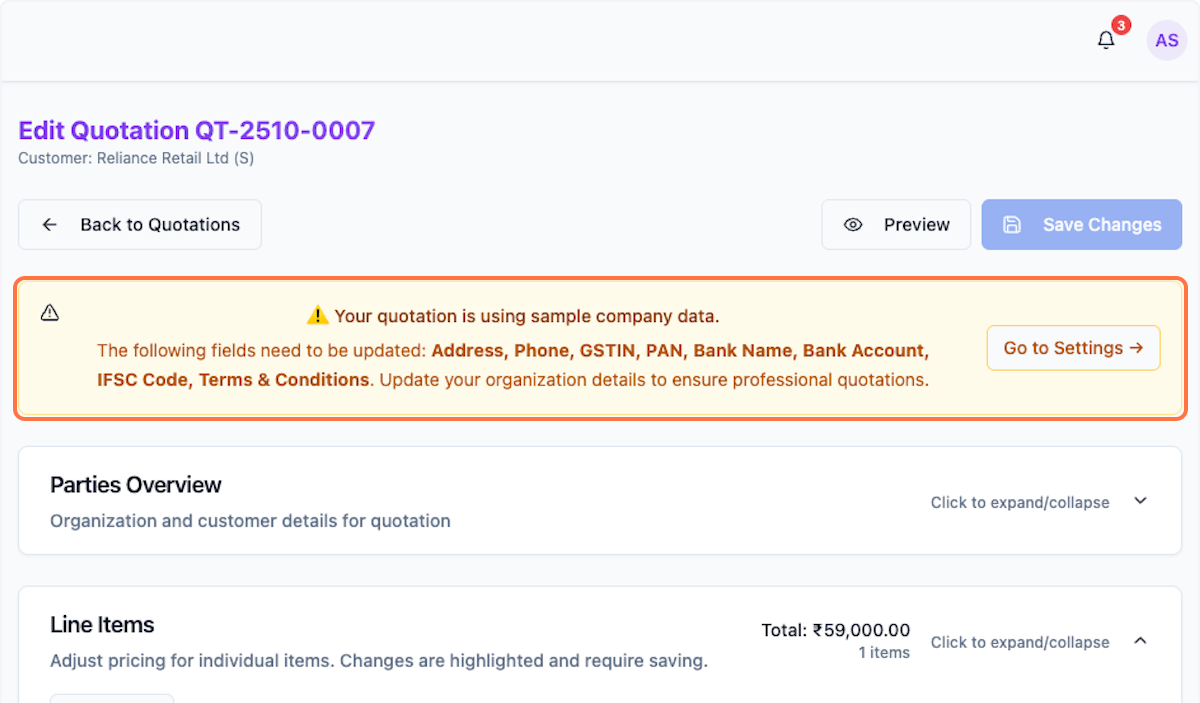
Quotation opens in edit mode. Check for warnings if settings aren't updated.
Step 3: Review Parties Overview
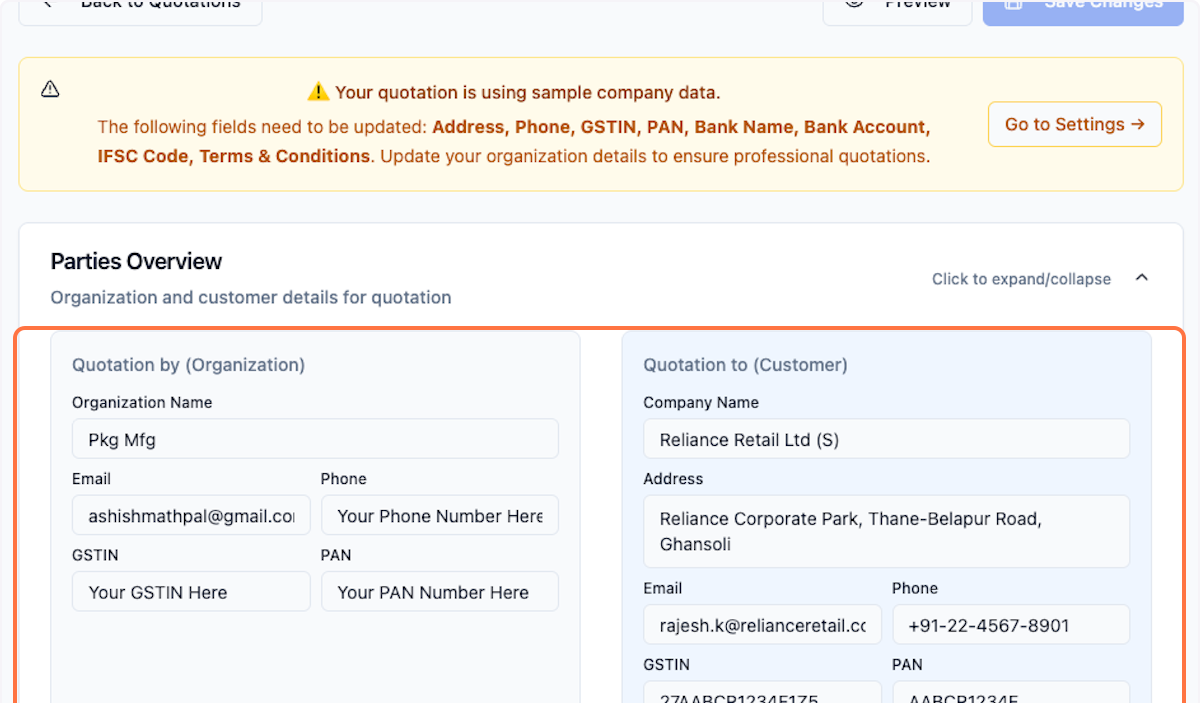
Review and update details for parties involved. Update anything that needs correction.
Step 4: Verify Details
Check for correctness and update if required.
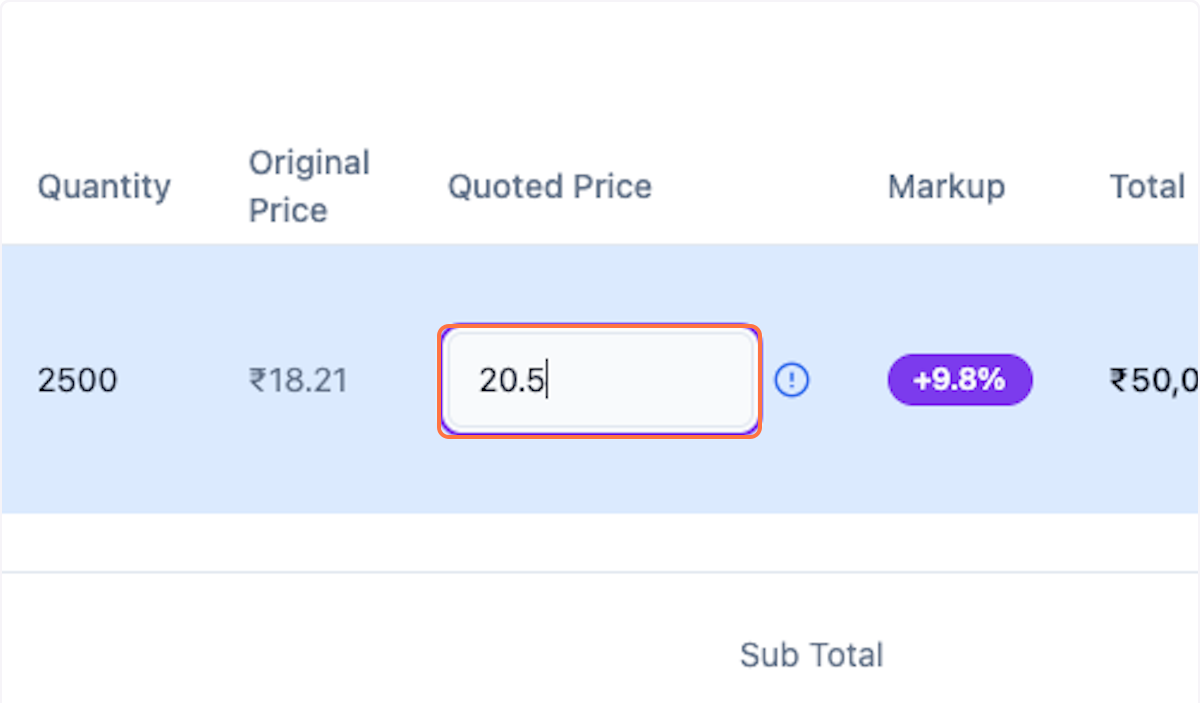
Step 5: Update Price
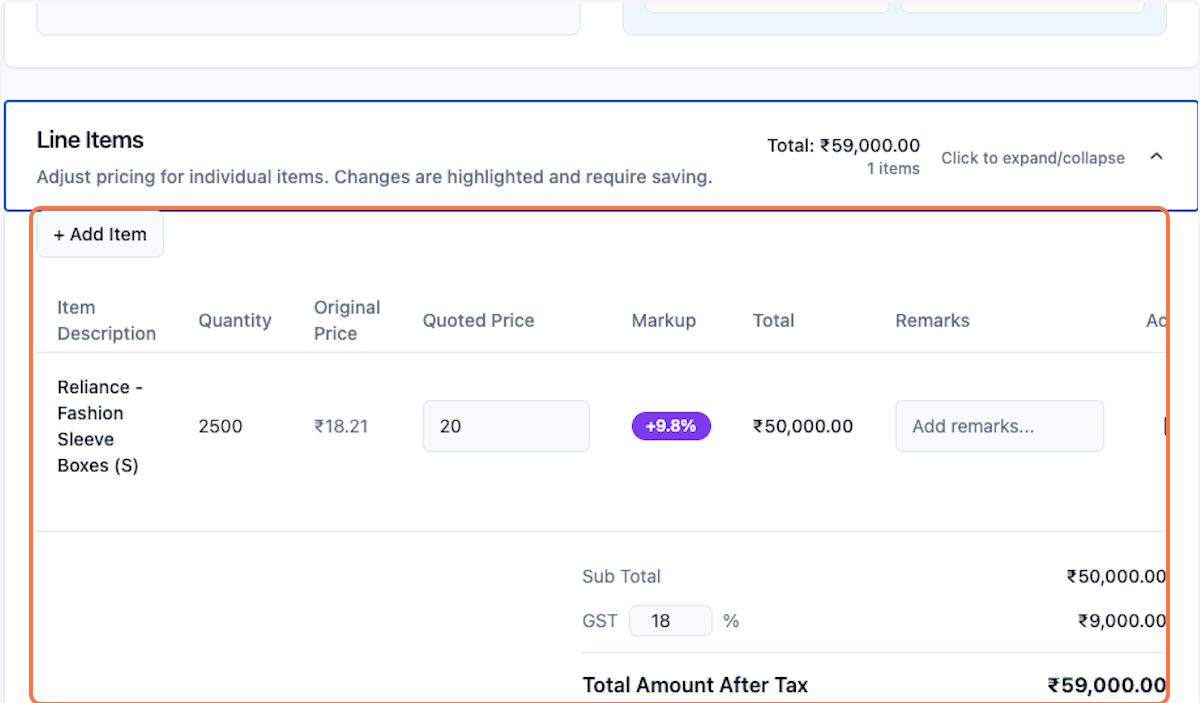
Update the price if required.
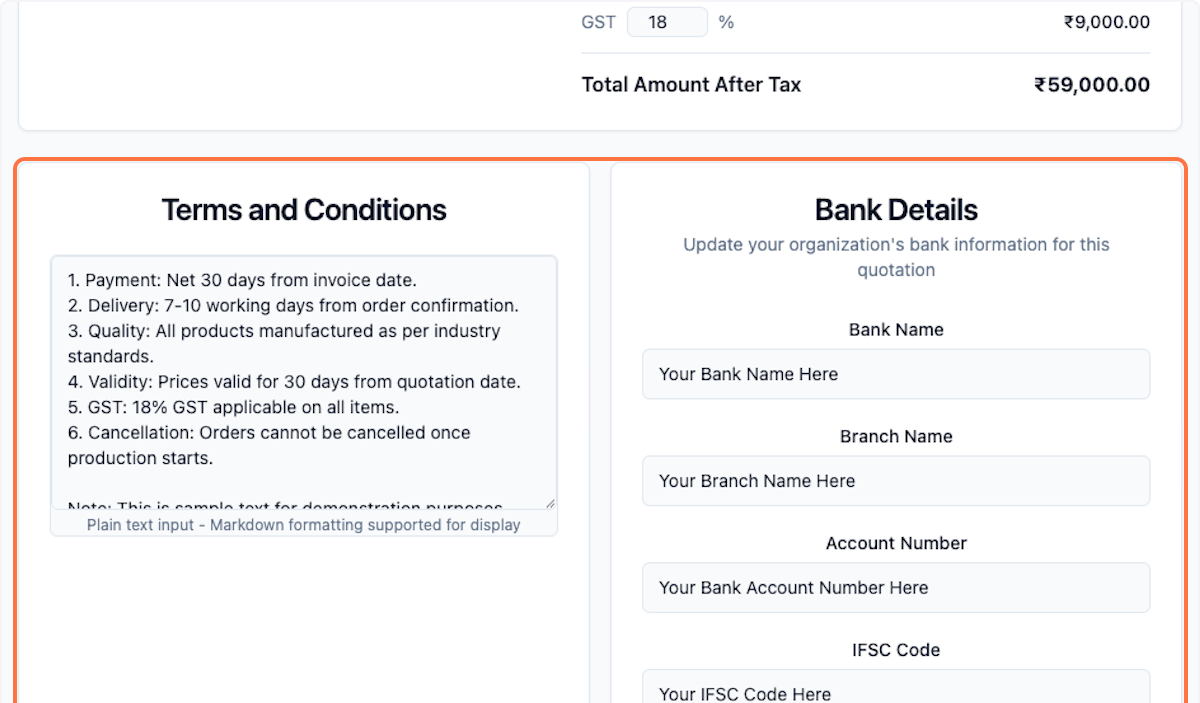
Step 6: Update Terms and Bank Details
Click to update Terms and Conditions & Bank Details with correct information.
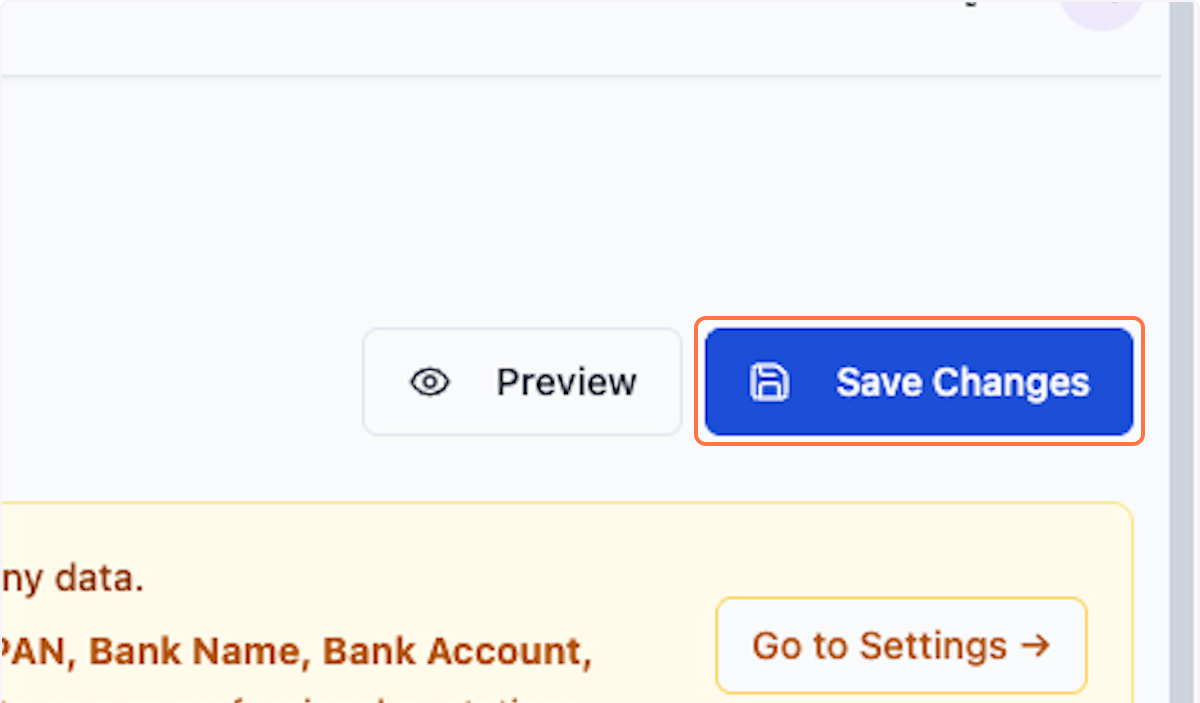
Step 7: Save Changes
Click Save Changes to save your updates.
Preview and Status Update
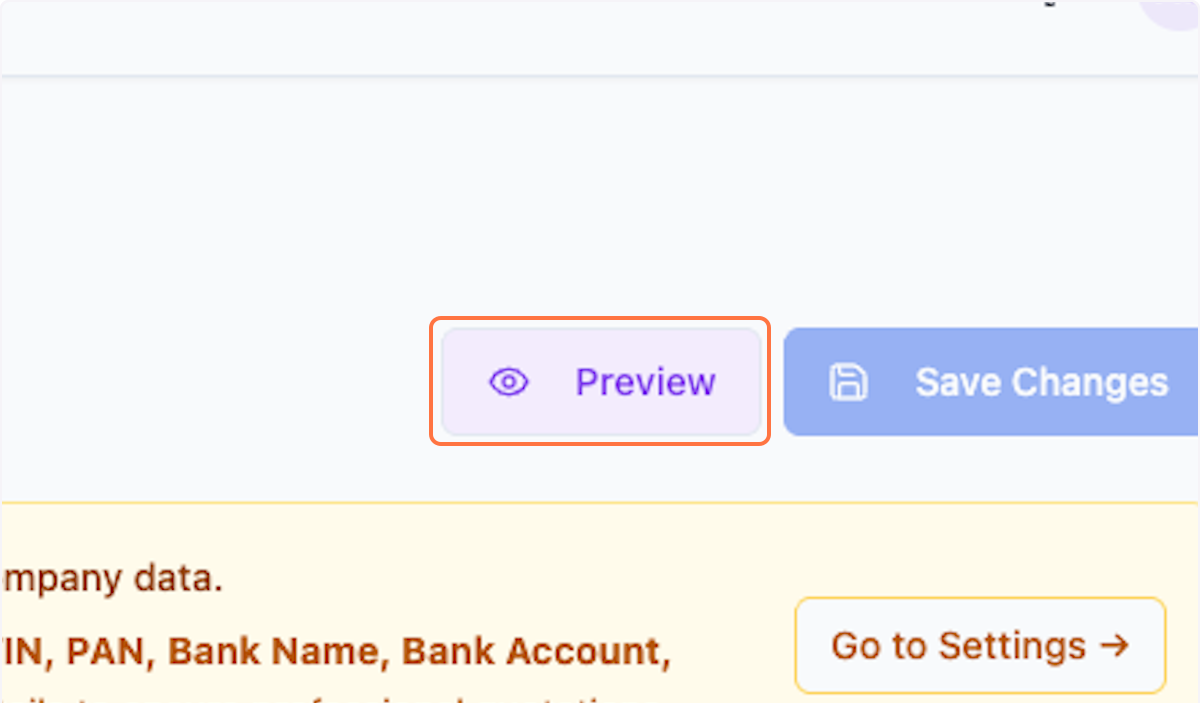
Step 8: Preview Updates
Scroll up to preview the updates.
Step 9: Open Quotation Preview
Click on Quotation Preview to see the final result.
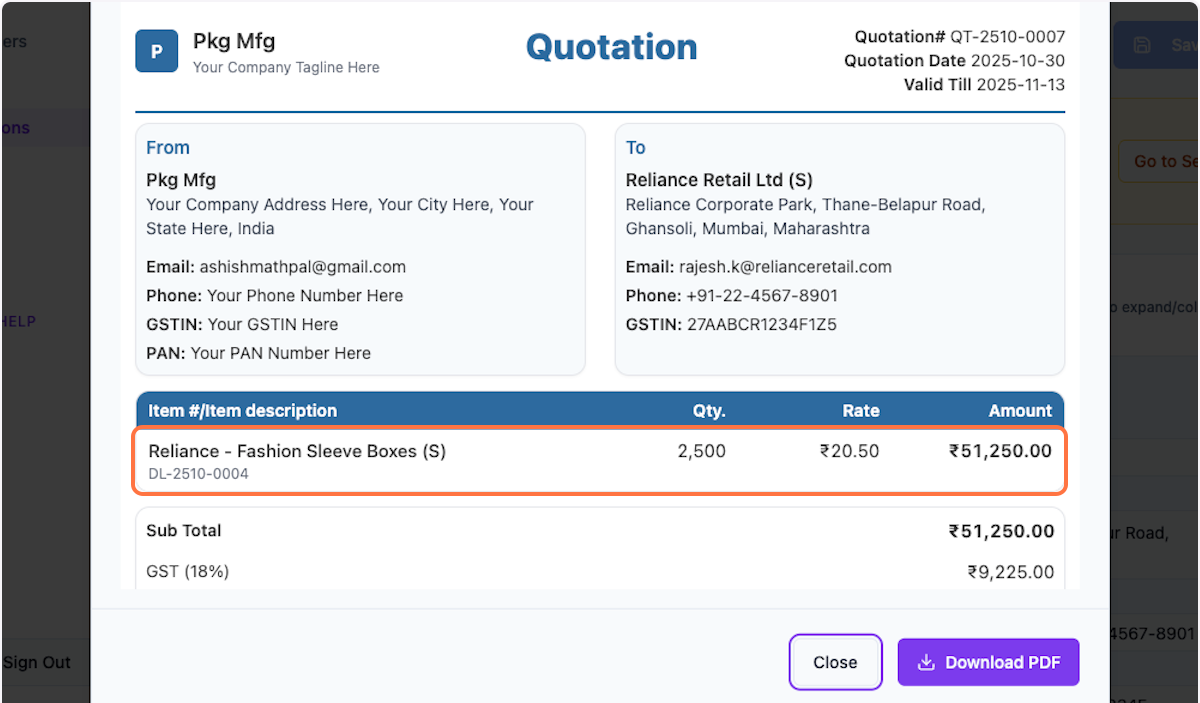
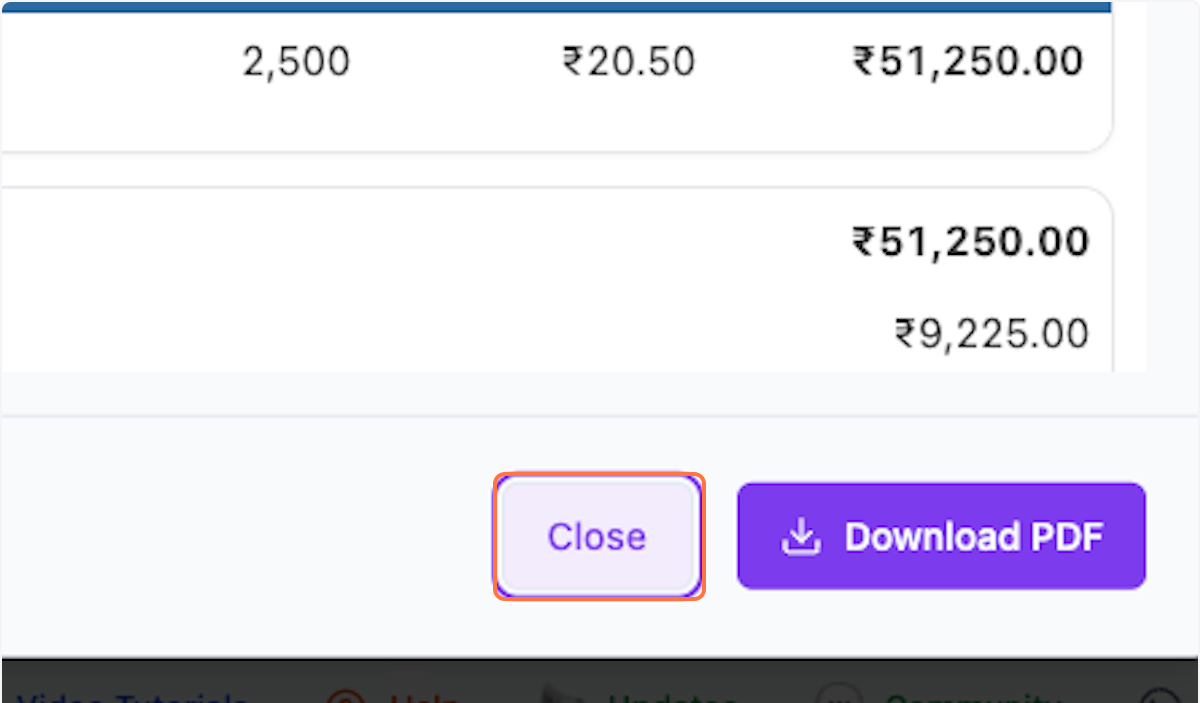
Step 10: Close Preview
Click Close to close the preview.
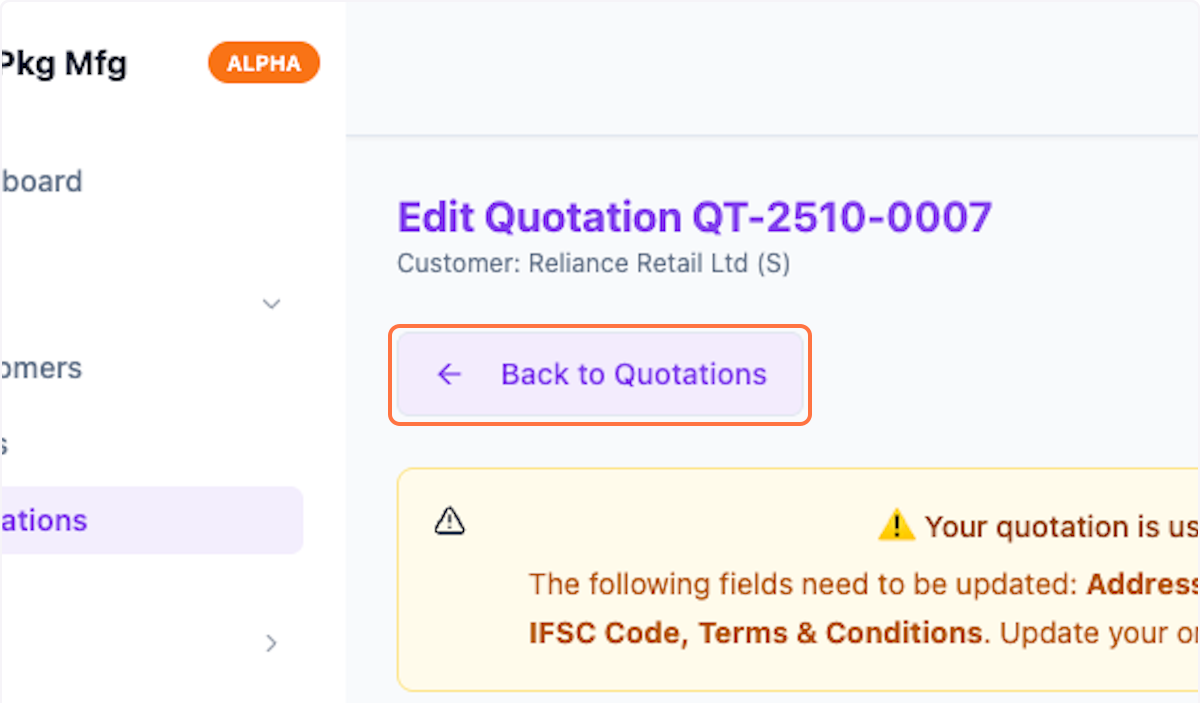
Step 11: Return to Quotations
Click Back to Quotations to return to the list.
Update Status
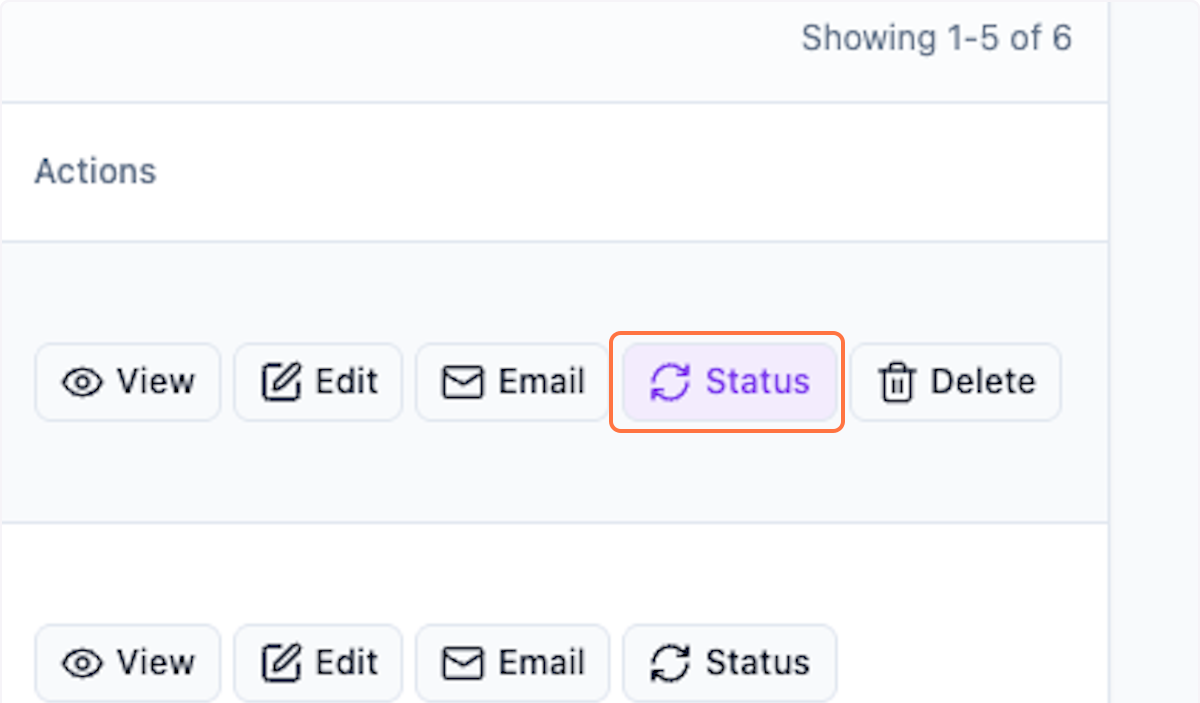
Step 12: Click on Status
Click on Status to change the quotation status.
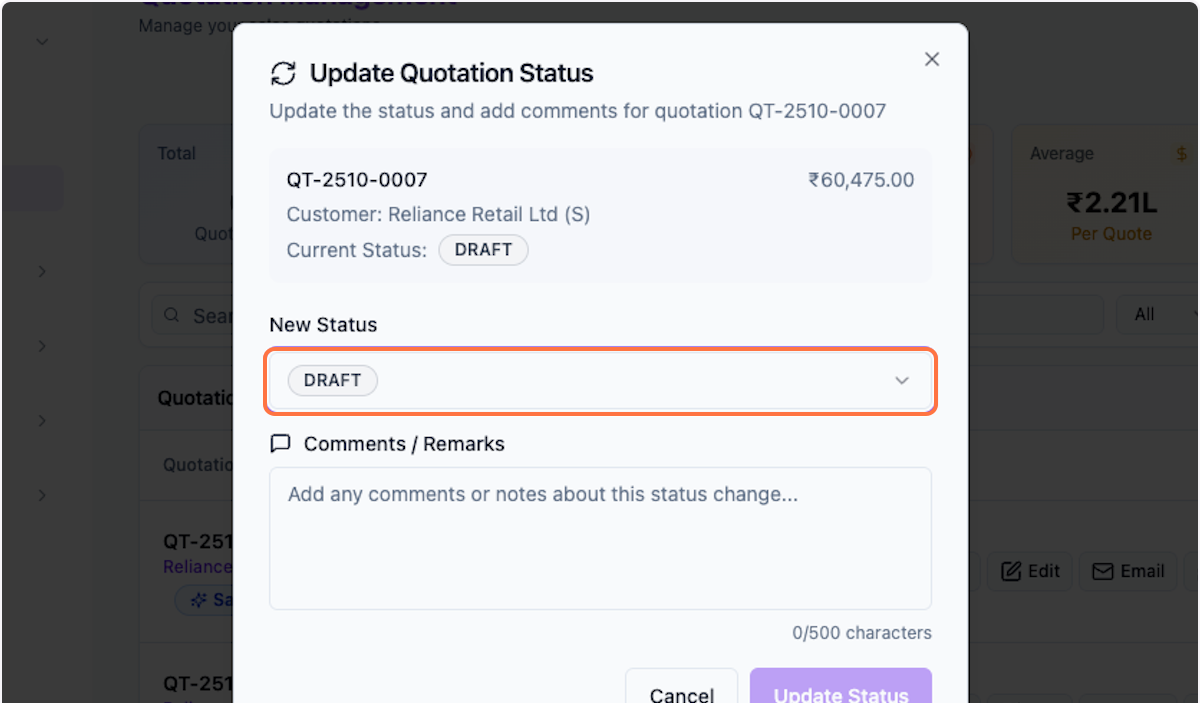
Step 13: Select New Status
Select "Ready" from the dropdown. You can choose status as per your choice.
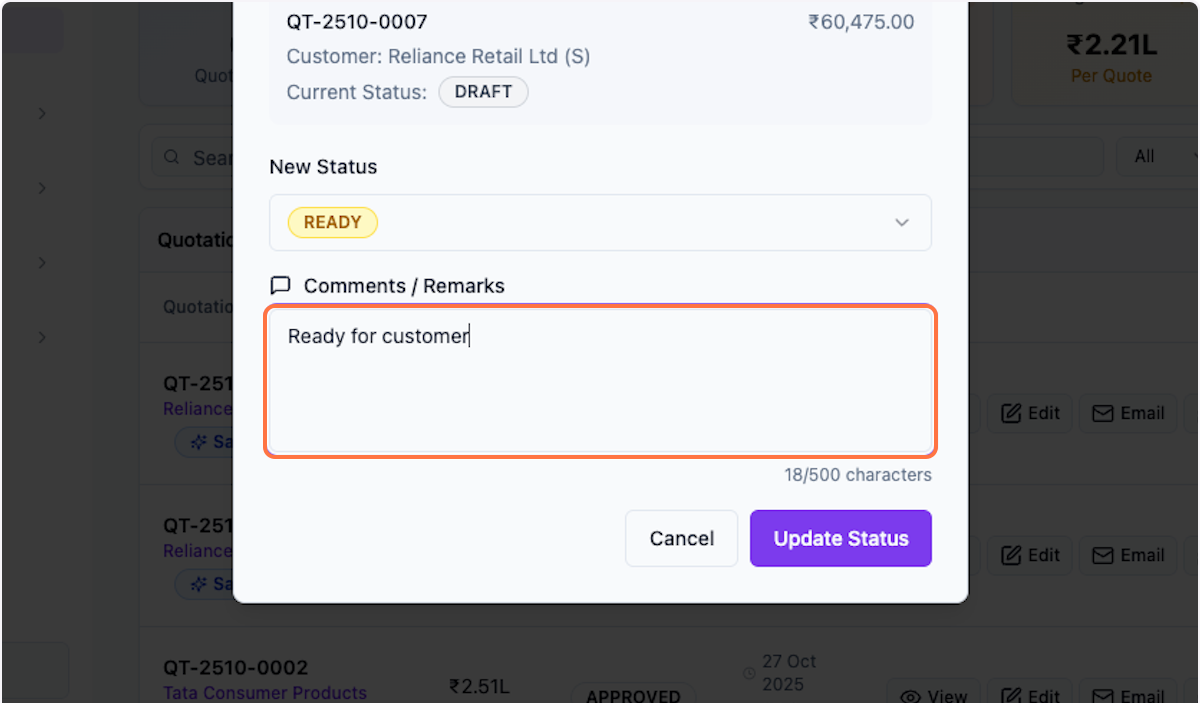
Step 14: Add Comments
Update comments for the status change.
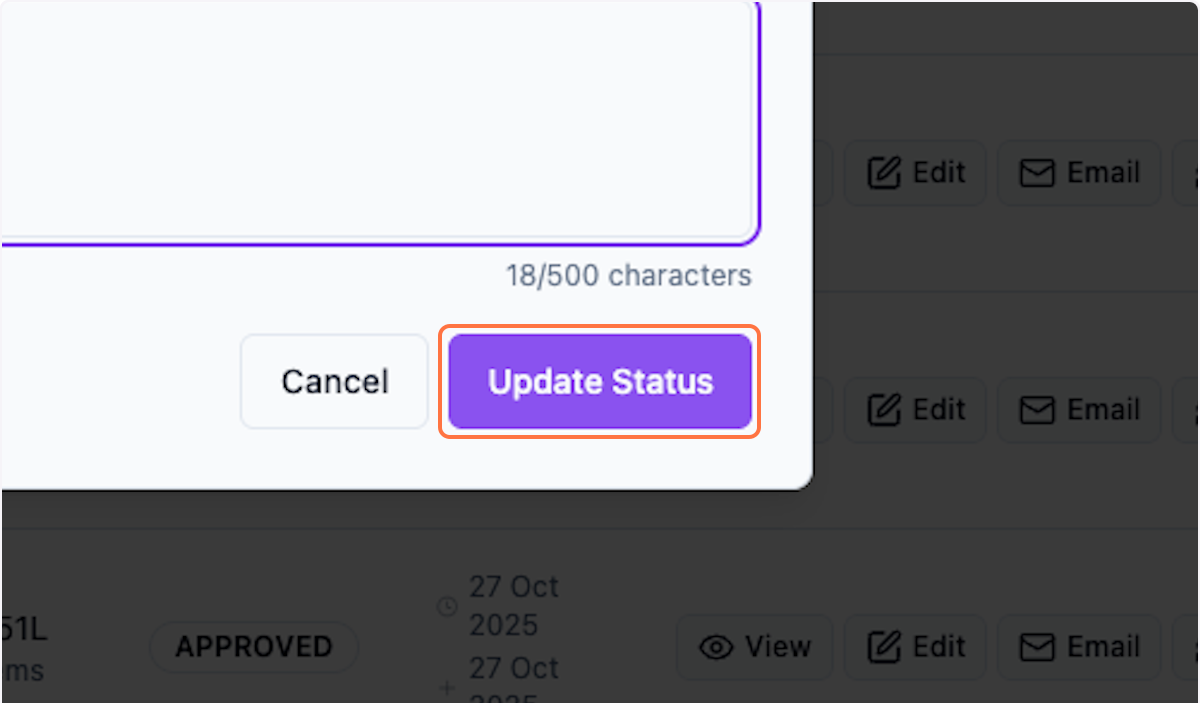
Step 15: Update Status
Click Update Status to save the change.
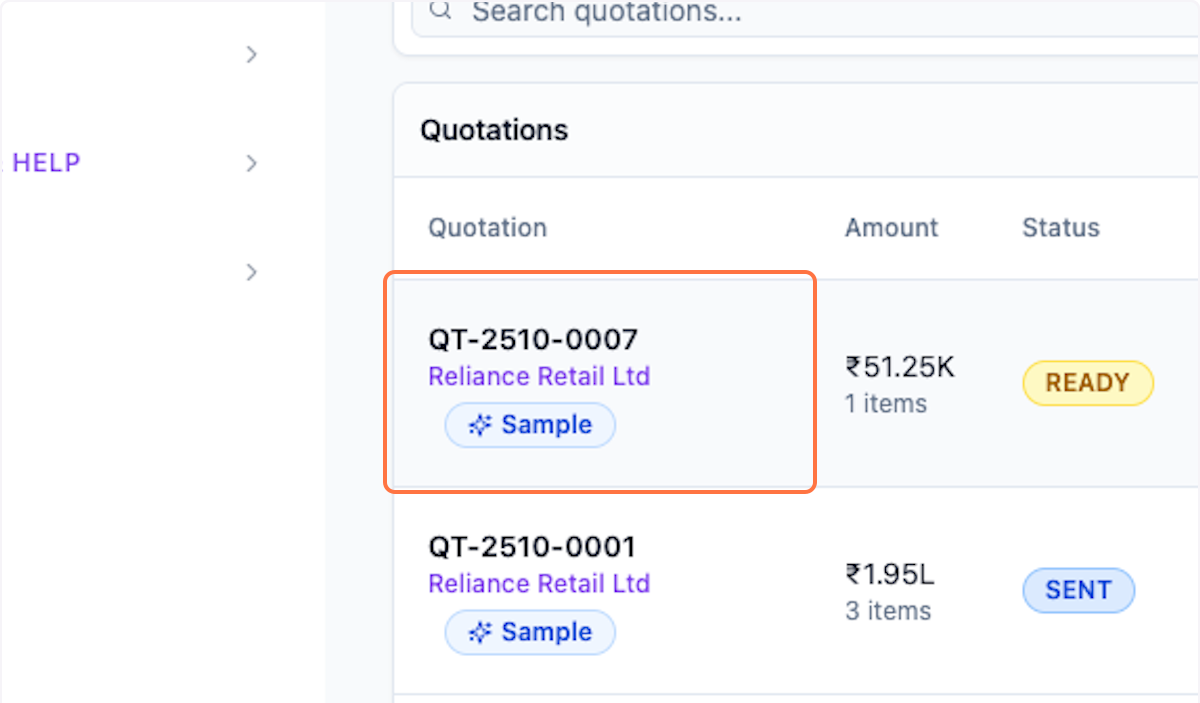
Step 16: Review Updated List
Check the quotation with updated details and status.
What's Next?
After updating a quotation, you can:
- Share the updated quotation with customers
- Track customer responses
- Convert accepted quotations to orders
Was this helpful?
Let us know if you need more help.