Team Management
Manage team members, invite users, and configure permissions in PackWares CMS.
Open in AppLearn how to manage your team in PackWares CMS. Add team members, send invitations, and manage access to your organization.
Accessing Team Settings
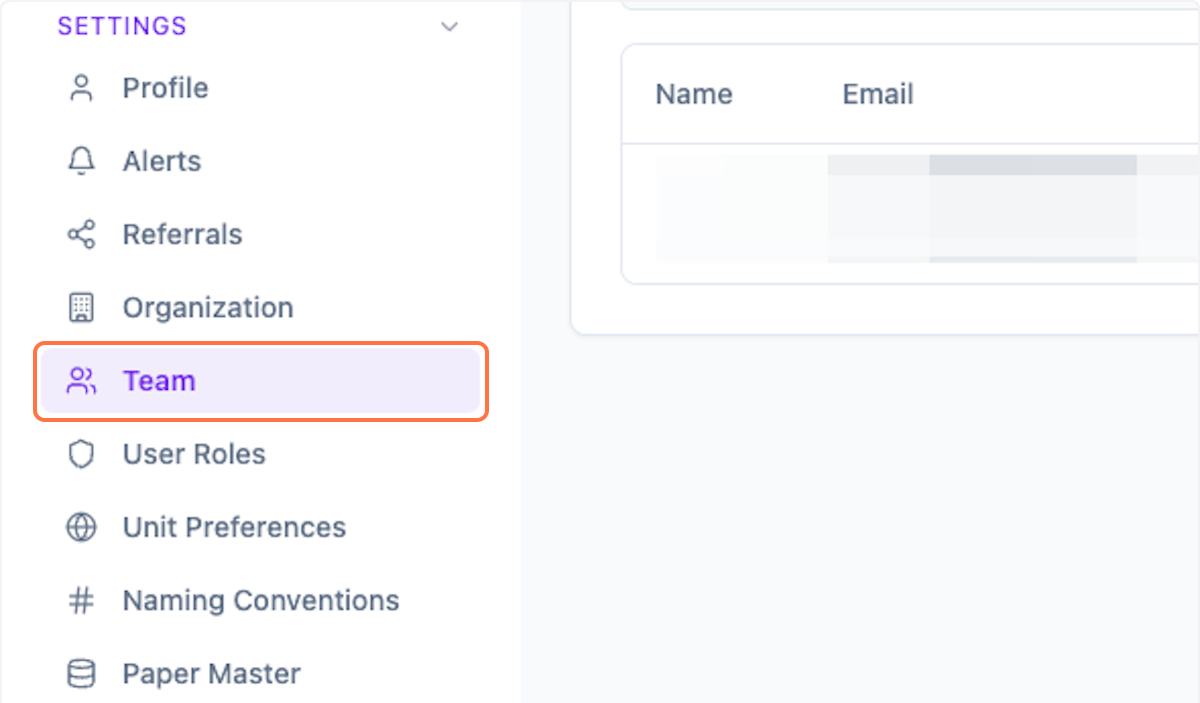
Step 1: Open Team Settings
Click on Settings > Team to access team management.
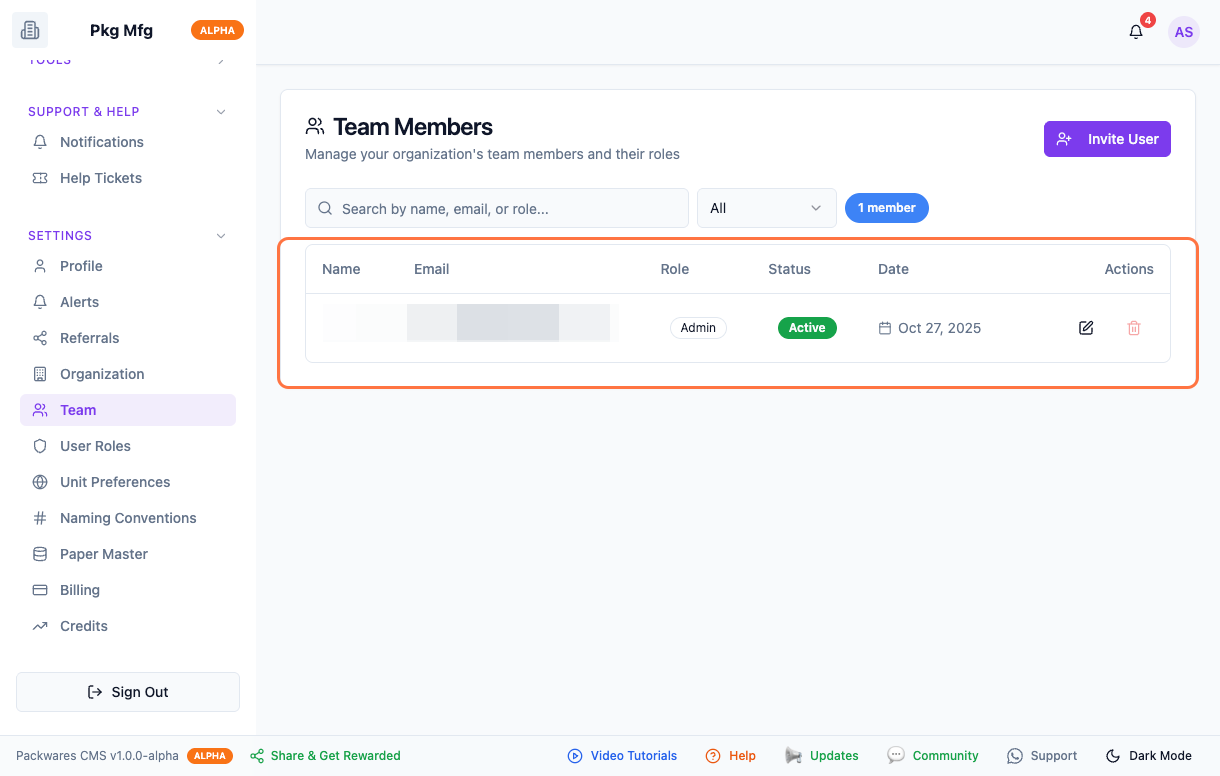
Step 2: View Team Members
Preview all available team members in your organization.
Adding New Team Members
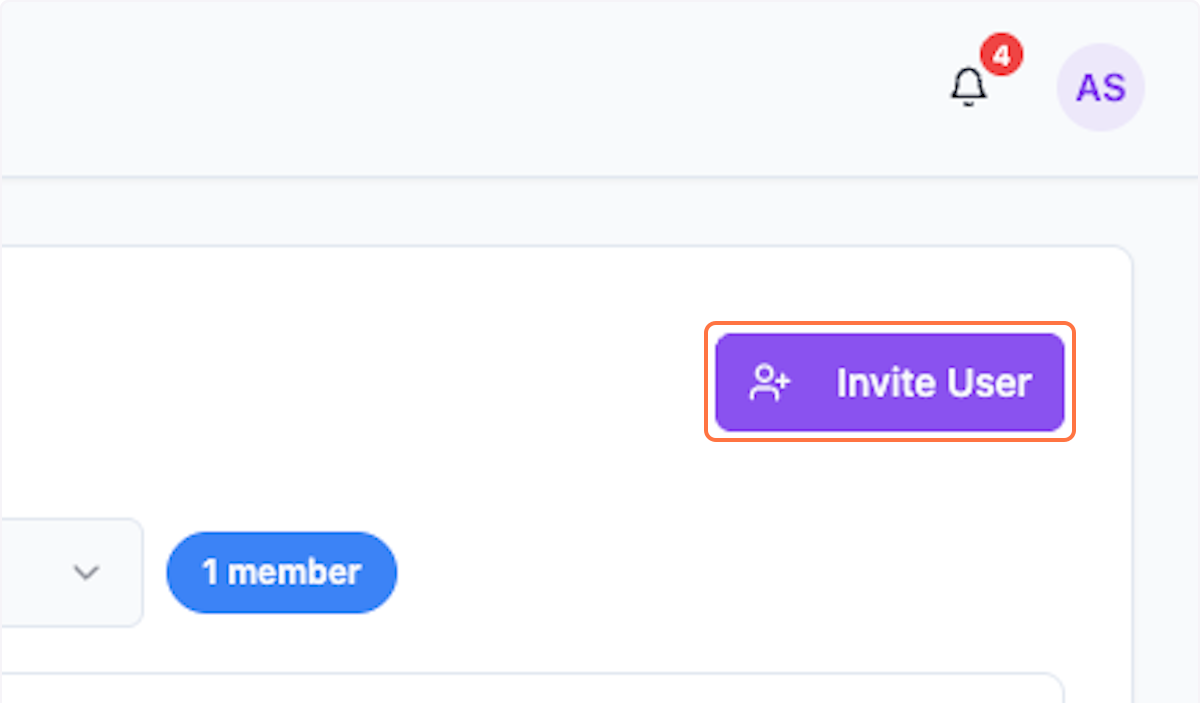
Step 3: Click Invite User
To add a new user, click on Invite User.
Step 4: Enter Email
Enter the team member's email ID.
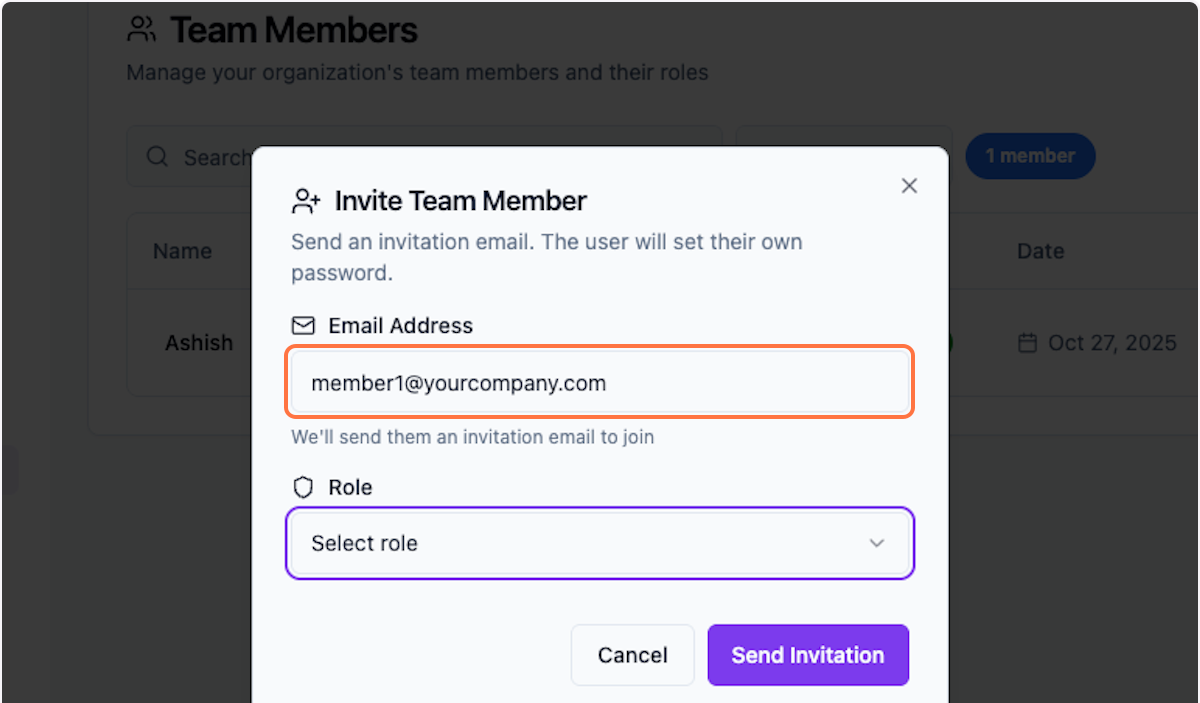
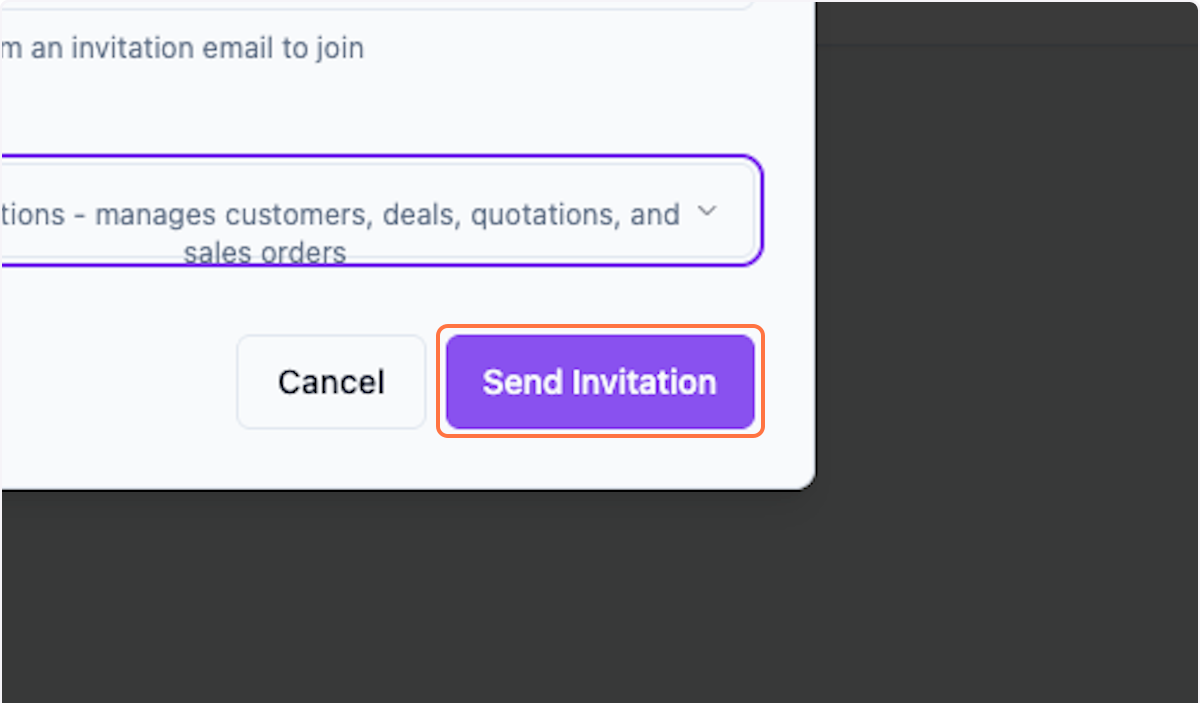
Step 5: Send Invitation
Click Send Invitation. The team member will receive an email invite to join your team.
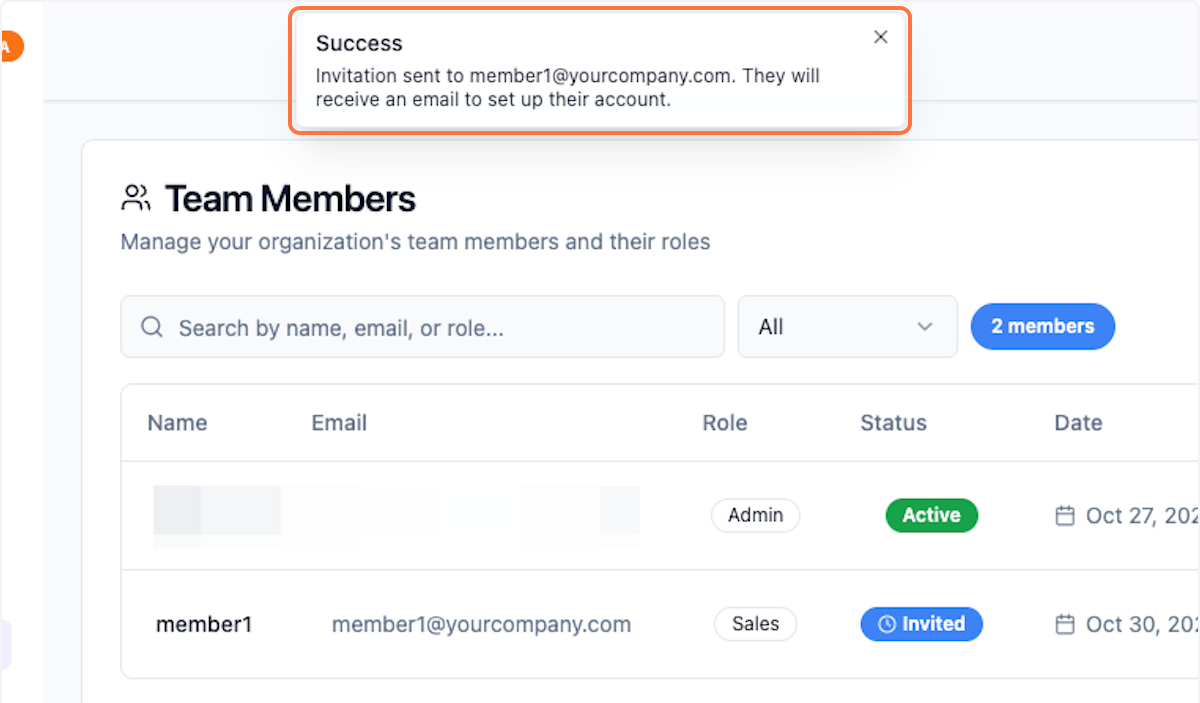
Step 6: Confirmation
A notification confirms that the email is sent.
Managing Invitations
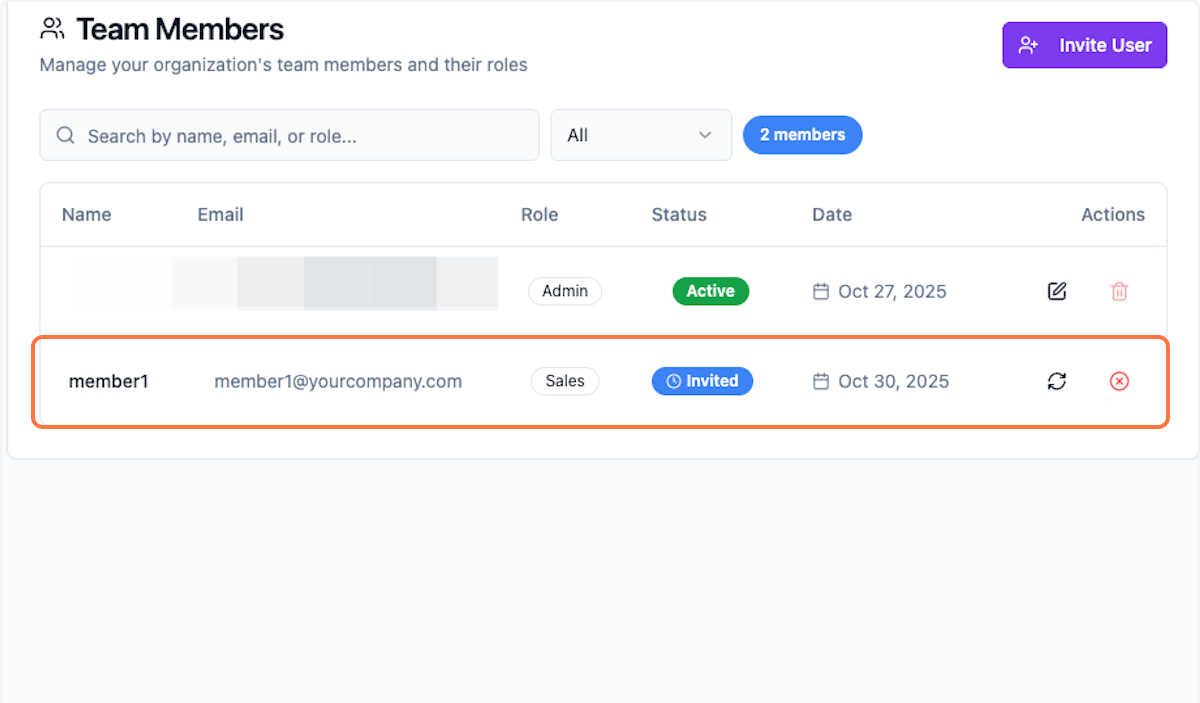
Step 7: View Added Members
Preview recently added team member. Add unlimited team members — status updates only after they accept the invite.
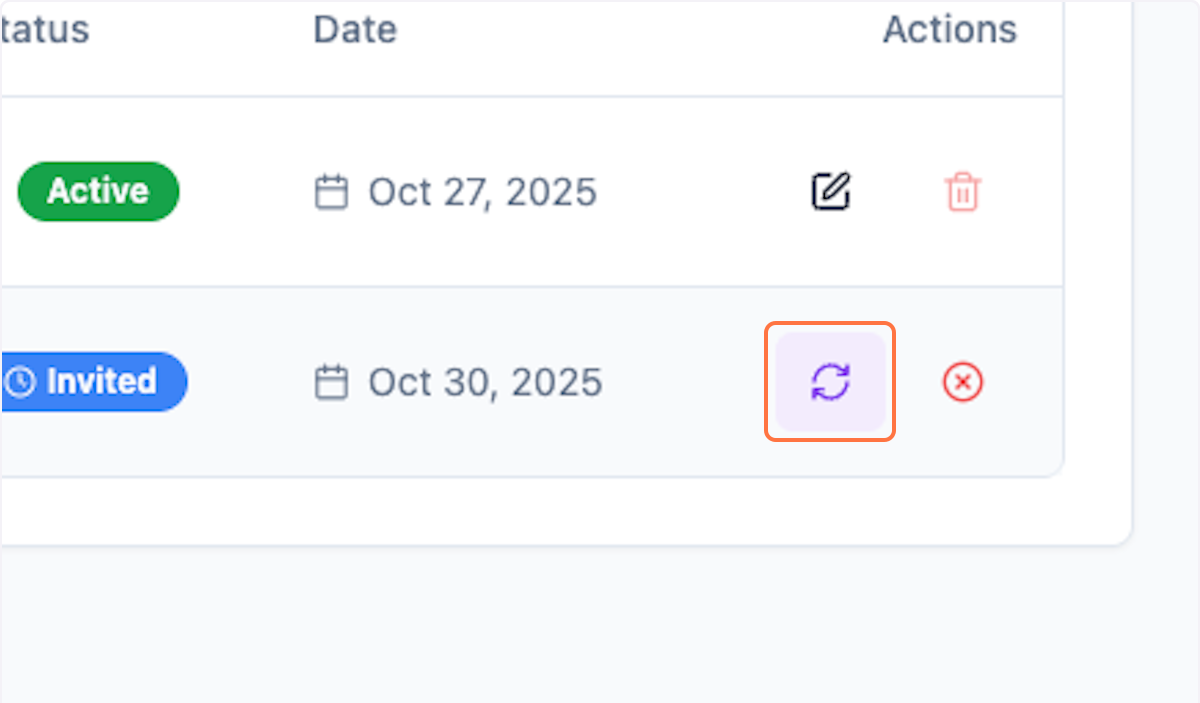
Step 8: Resend Invitation
Click the refresh icon to send them a reminder if they haven't accepted yet.
What's Next?
After adding team members, you can:
- Assign user roles and permissions
- Monitor team activity
- Remove team members if needed
- Configure access levels for different features
Was this helpful?
Let us know if you need more help.