User Roles
Configure user roles and permissions in PackWares CMS.
Open in AppLearn how to manage user roles in PackWares CMS. Customize roles and access permissions for each team member.
Accessing User Roles
Step 1: Open User Roles
Click on Settings > User Roles from the menu.
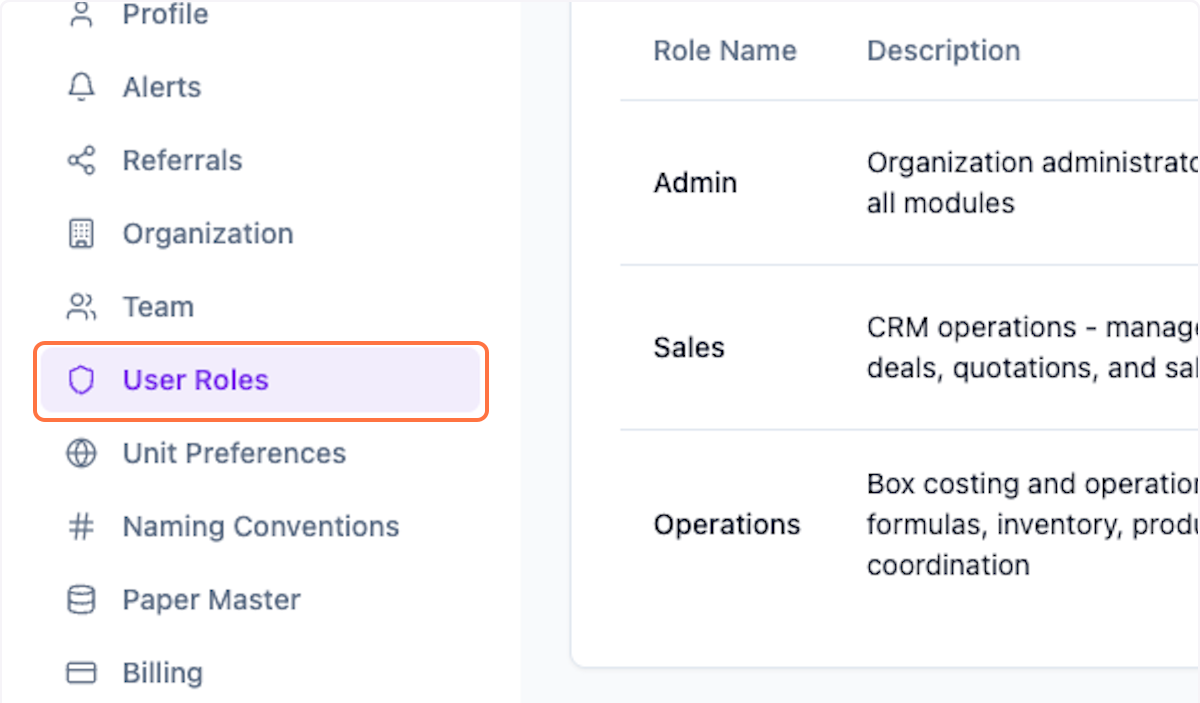
Step 2: Preview Existing Roles
Preview existing user roles. You can customize the roles and access for each role.

Editing User Roles
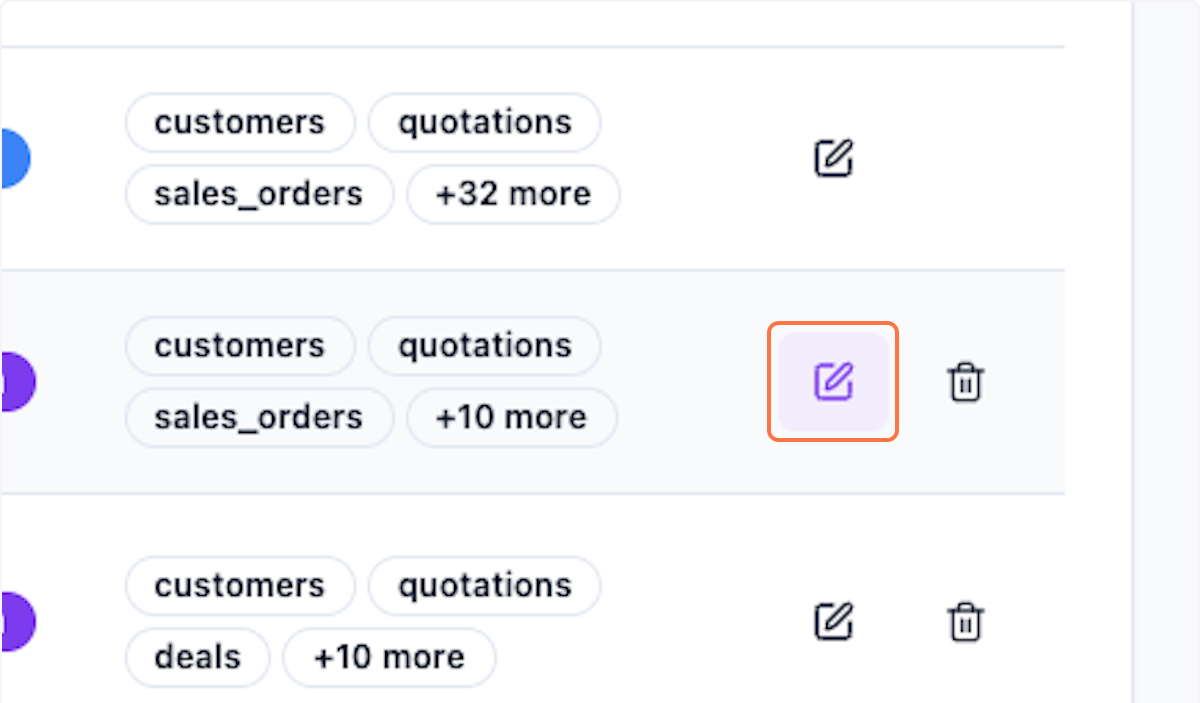
Step 3: Edit Role
Click on the pencil icon to edit a specific role.
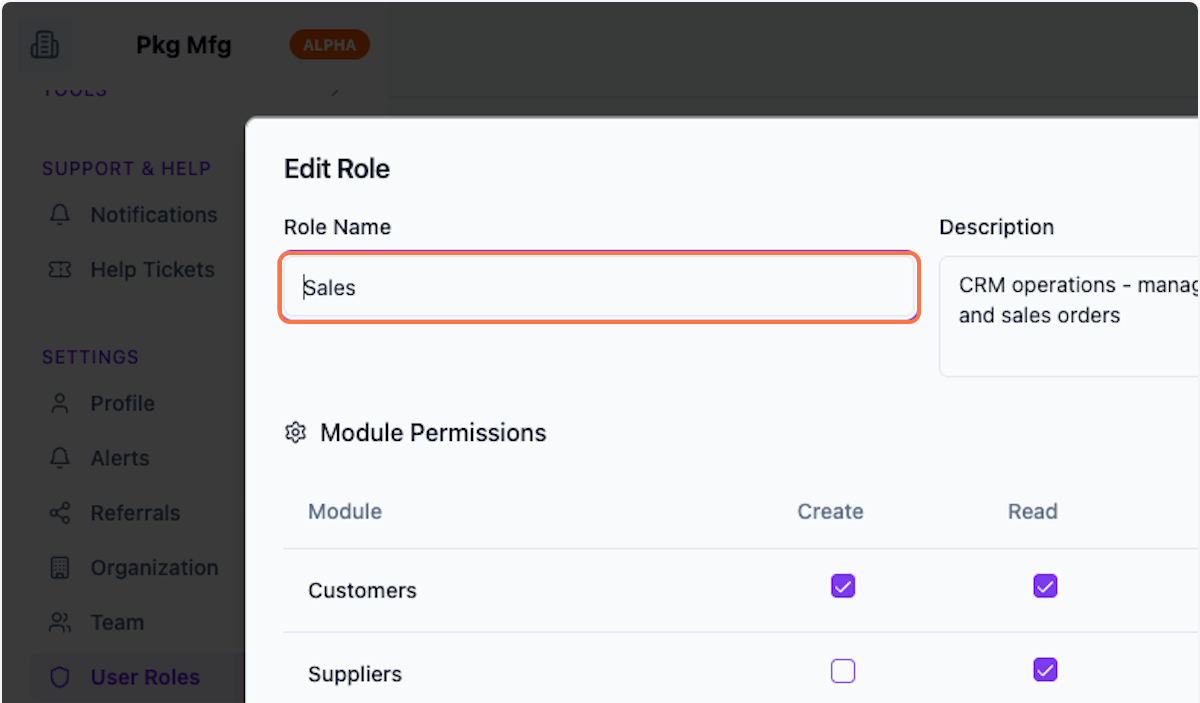
Step 4: Rename Role
Rename as your internal department role.
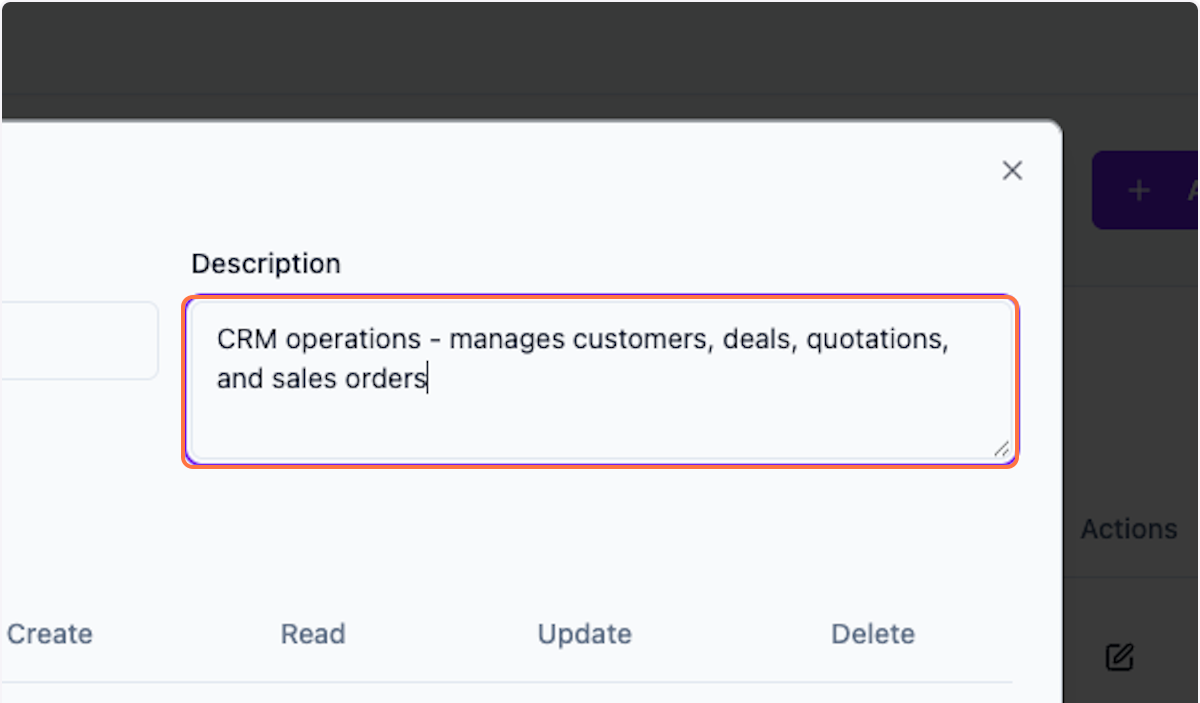
Step 5: Update Description
Update the description for the role.
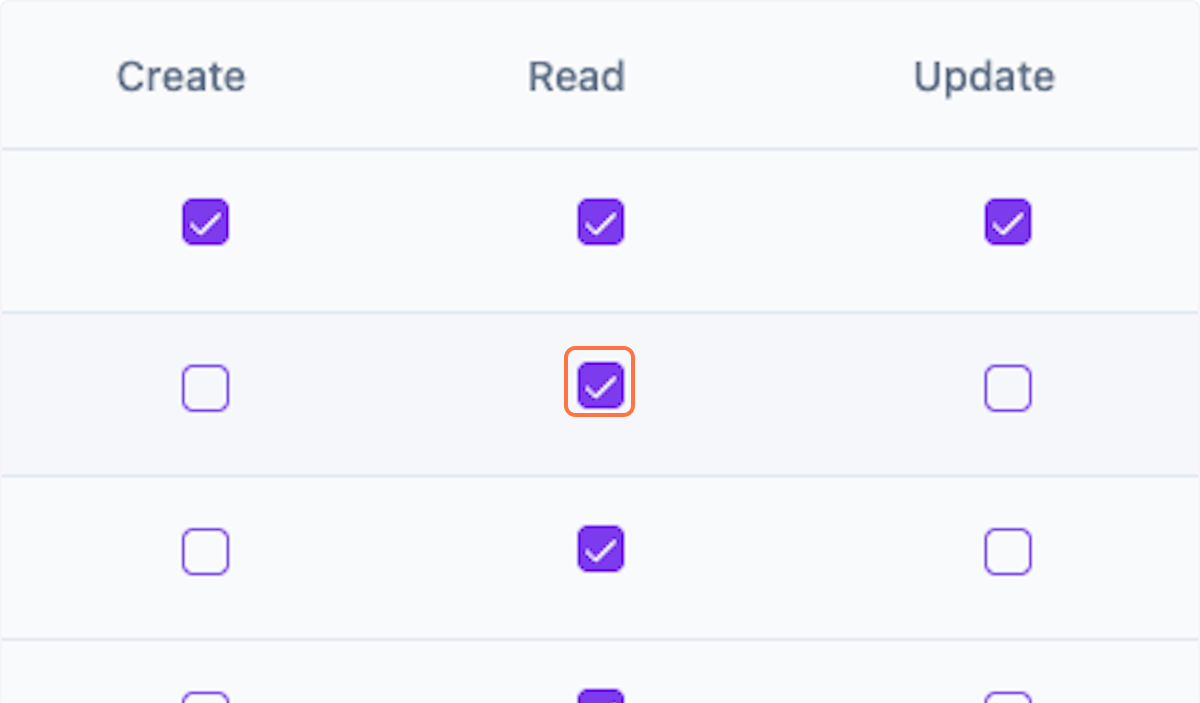
Step 6: Set Permissions
Check/uncheck page-wise permissions for the role.
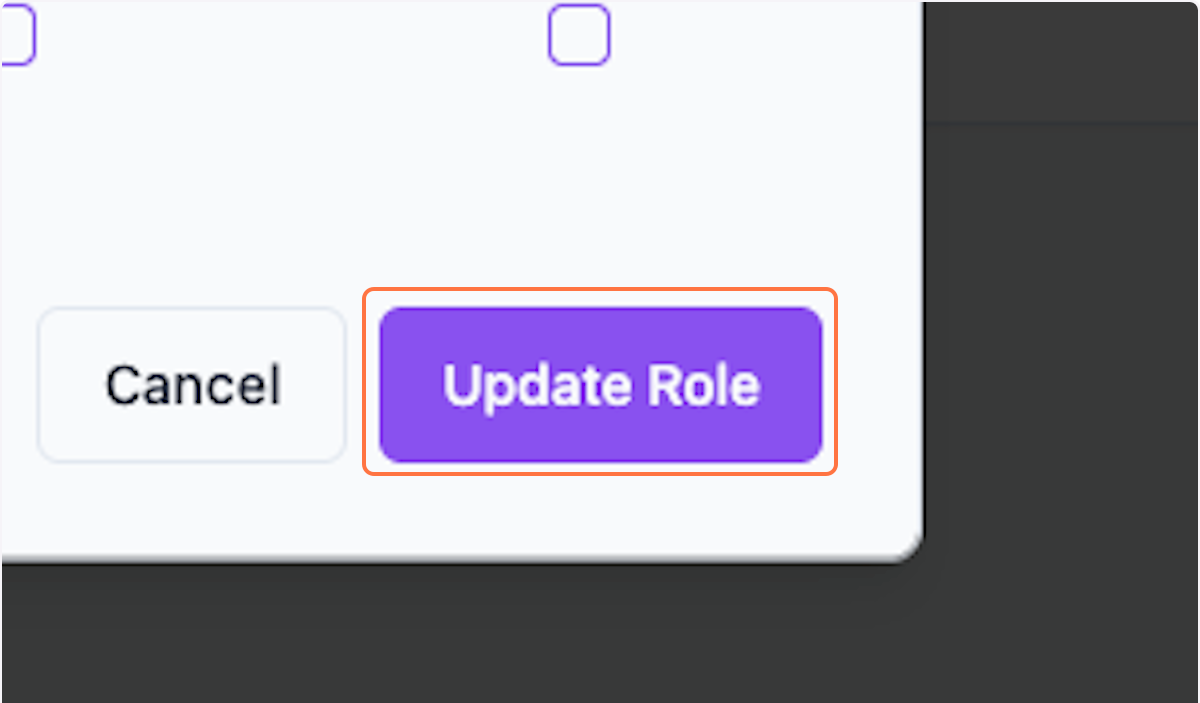
Step 7: Save Changes
Click Update Role to save the changes.
Creating New Roles
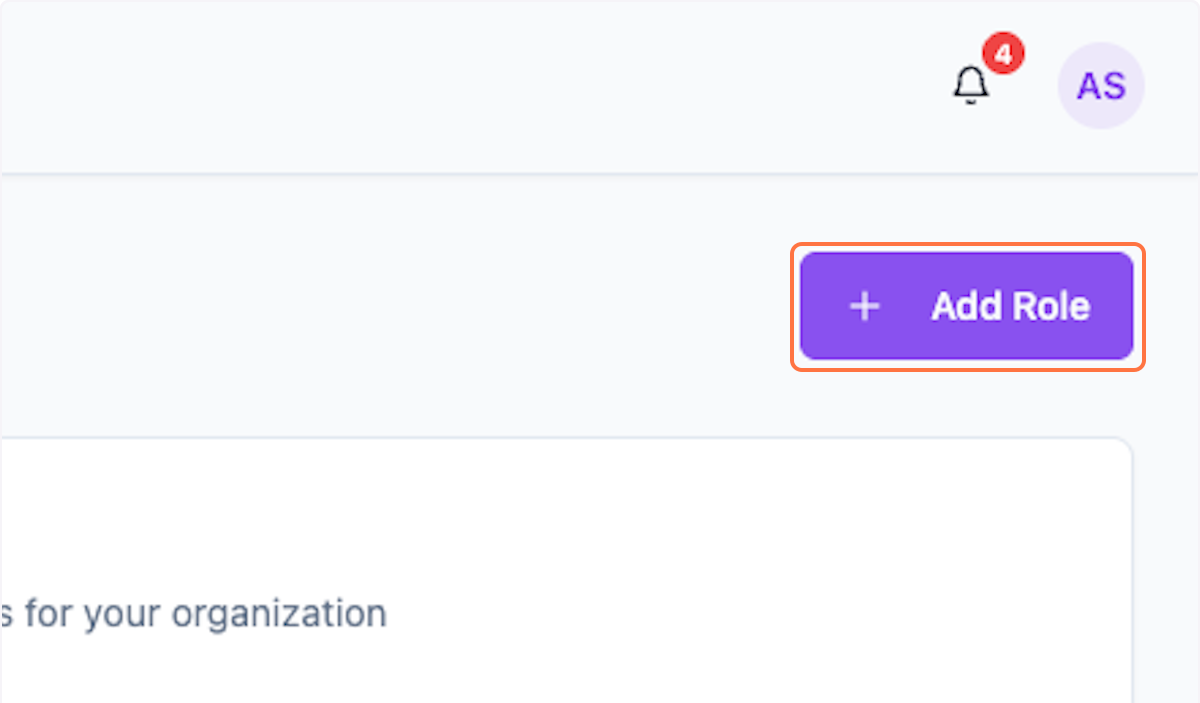
Step 8: Add New Role
Click on Add Role to create a new role.
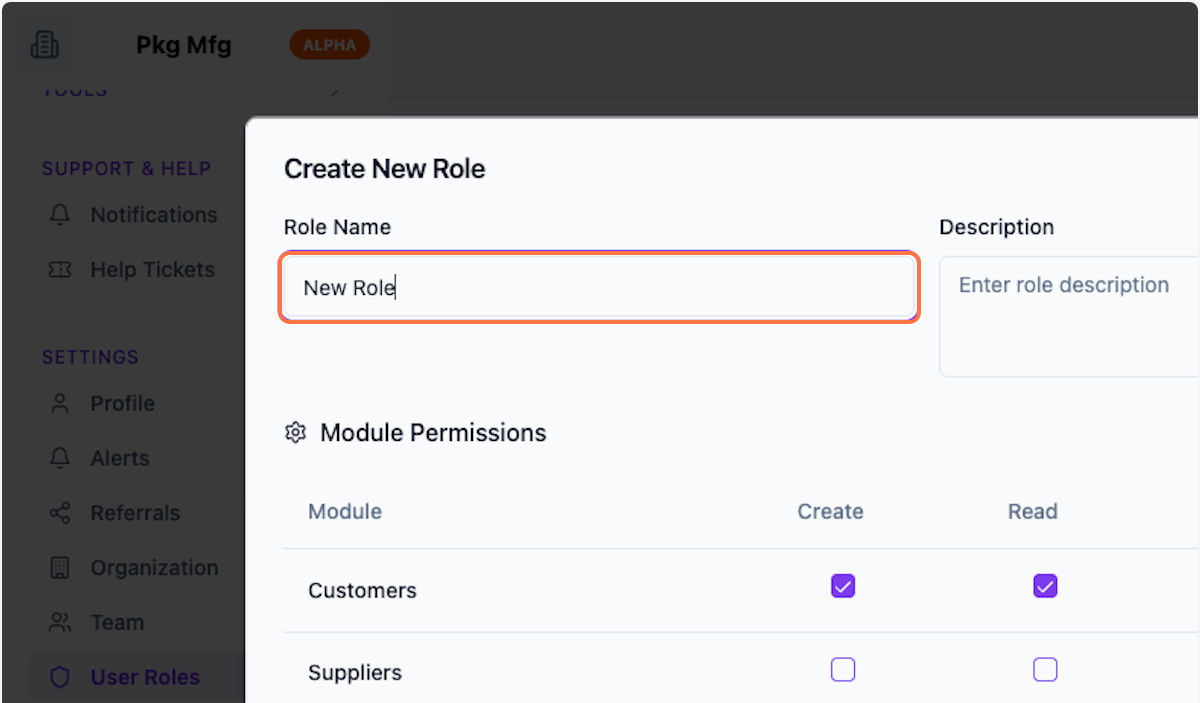
Step 9: Enter Role Name
Enter the role name.
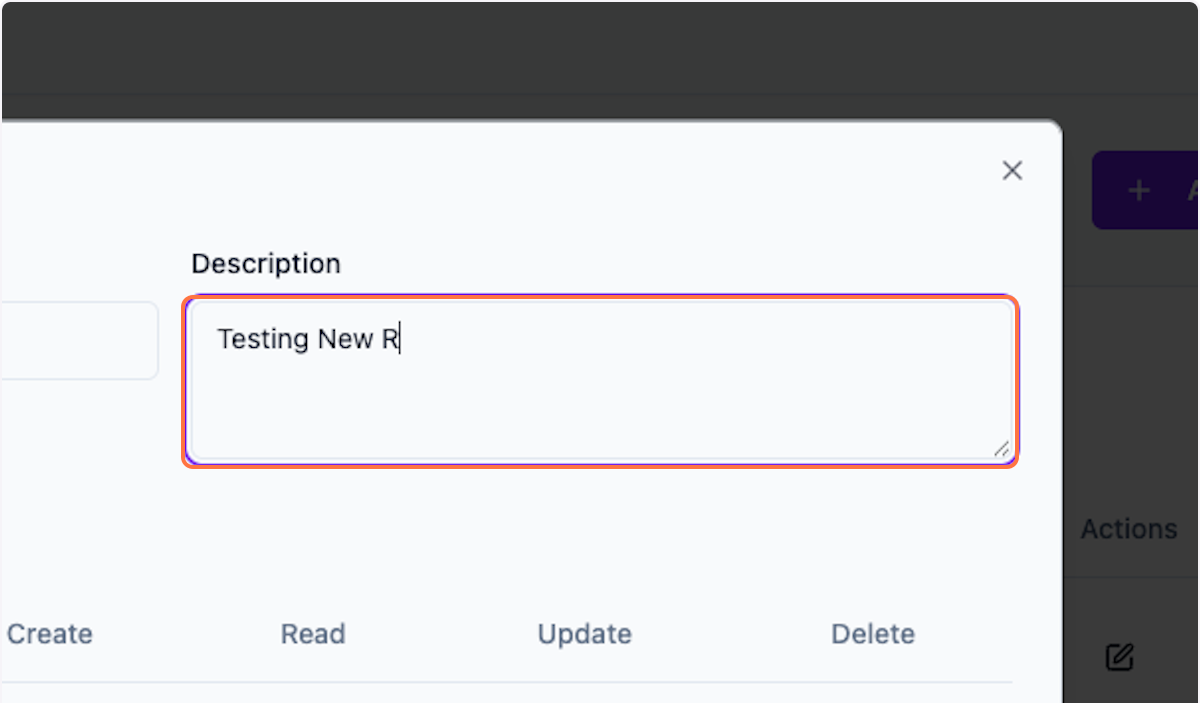
Step 10: Enter Description
Enter a description for the role.
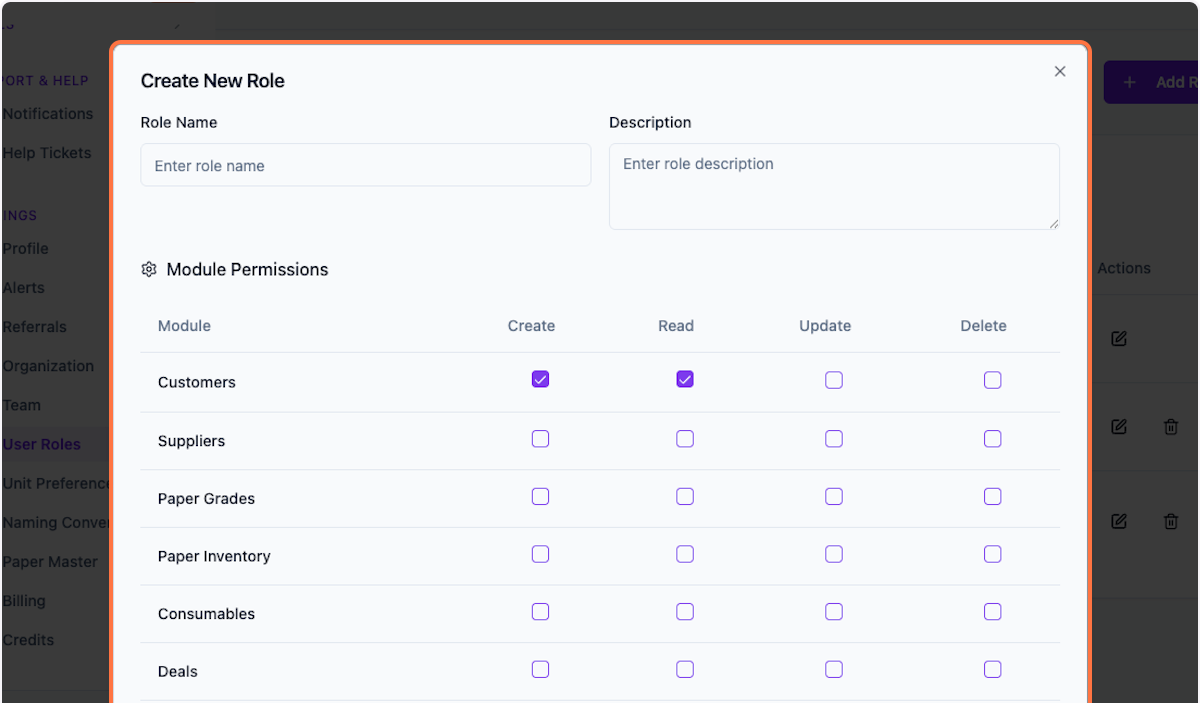
Step 11: Set Permissions
Give desired permissions for the new role.
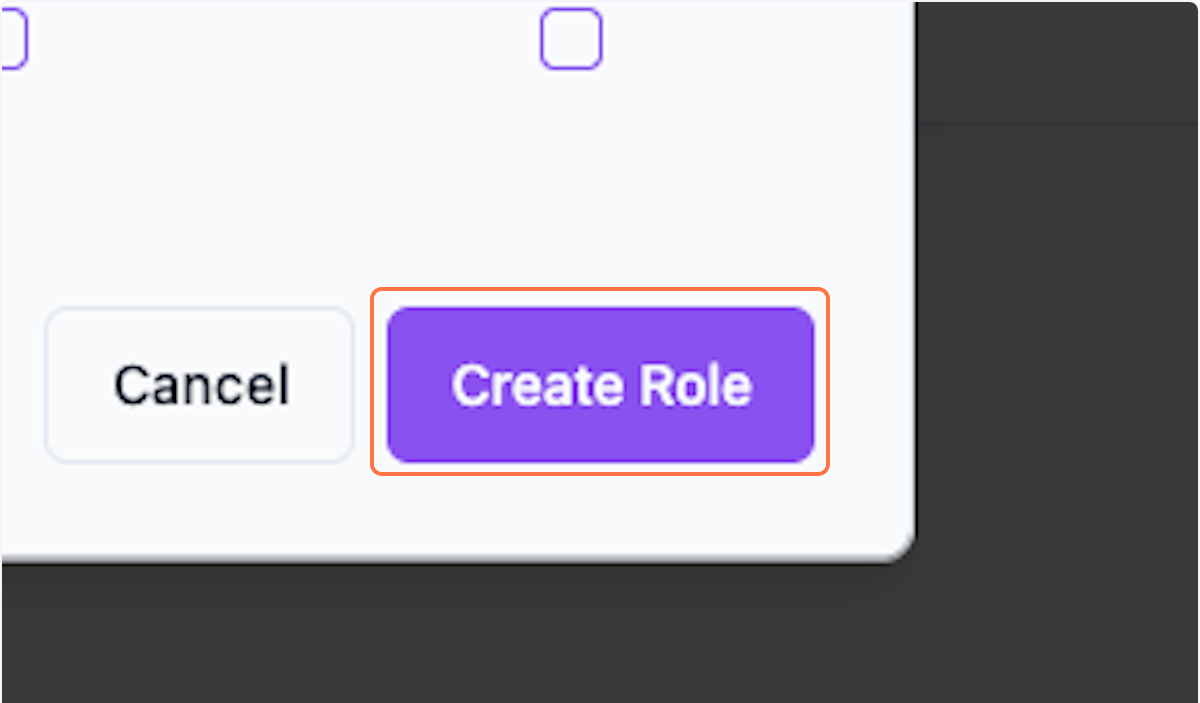
Step 12: Create Role
Click Create Role to save.
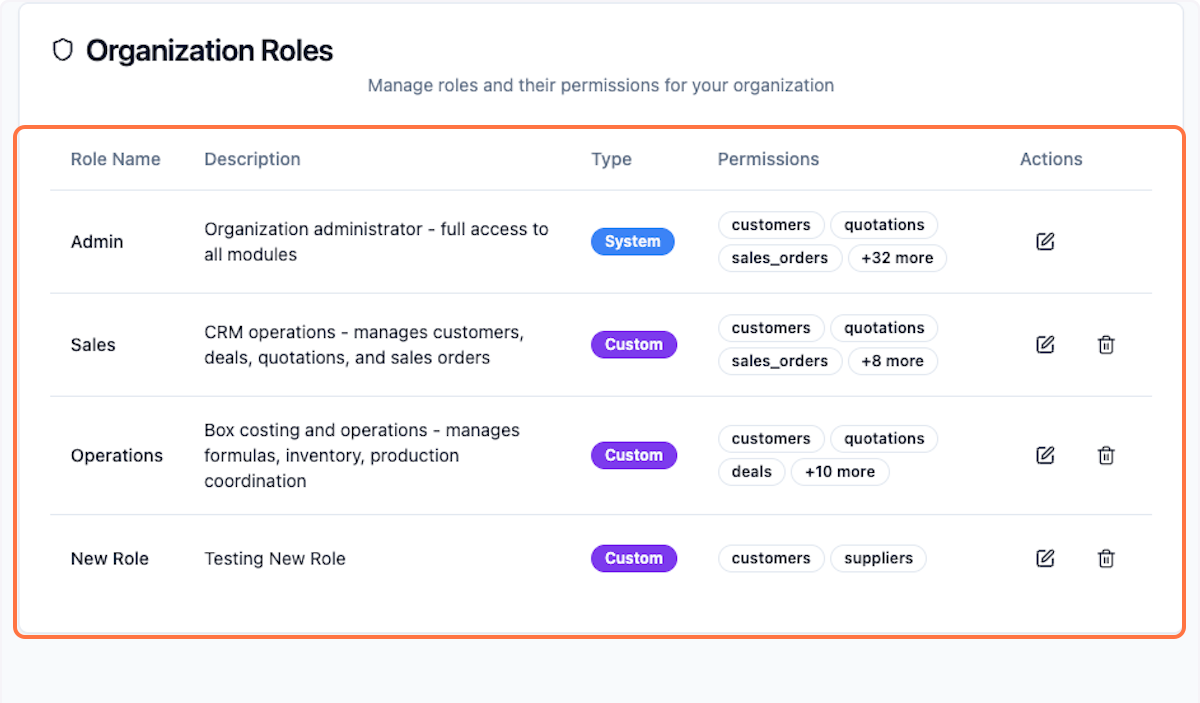
Step 13: View New Role
Preview the newly created role.
What's Next?
After setting up user roles:
- Assign roles to team members
- Manage access permissions
- Monitor team activity
Was this helpful?
Let us know if you need more help.