Variables
Create, update, and manage calculation variables in PackWares CMS.
Open in AppLearn how to manage variables in PackWares CMS. Variables are used in formulas and can be customized as per your needs.
Accessing Variables
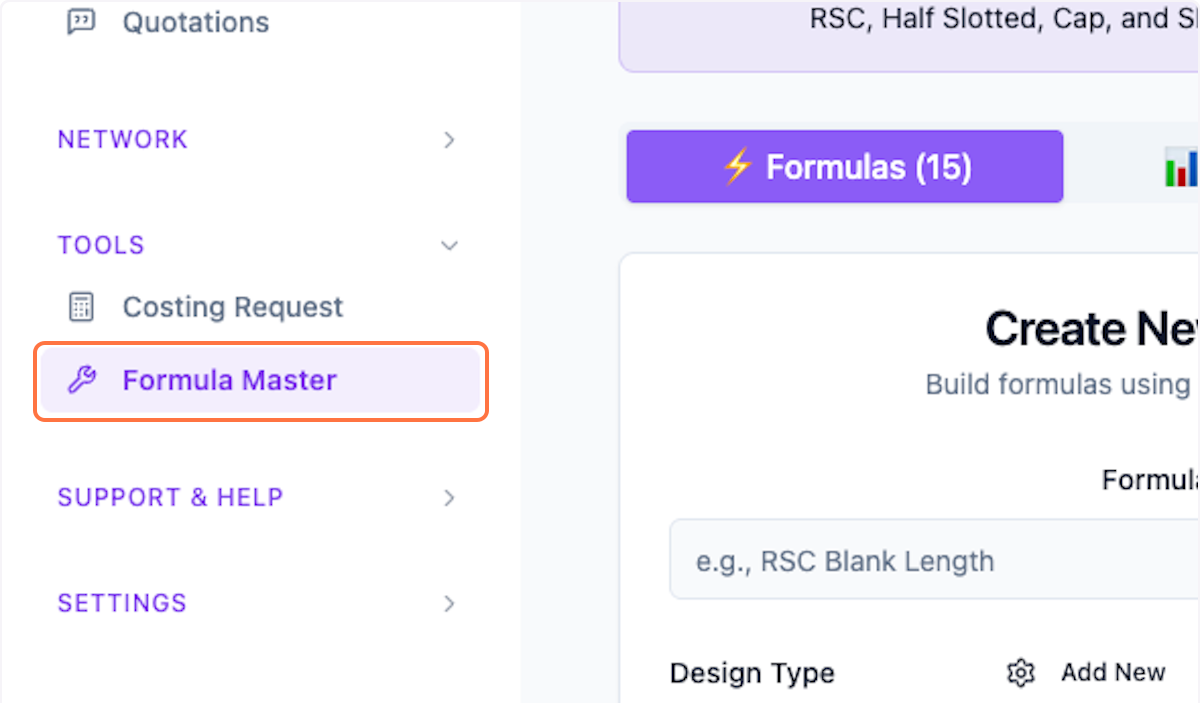
Step 1: Open Formula Master
Click on Formula Master from the menu.
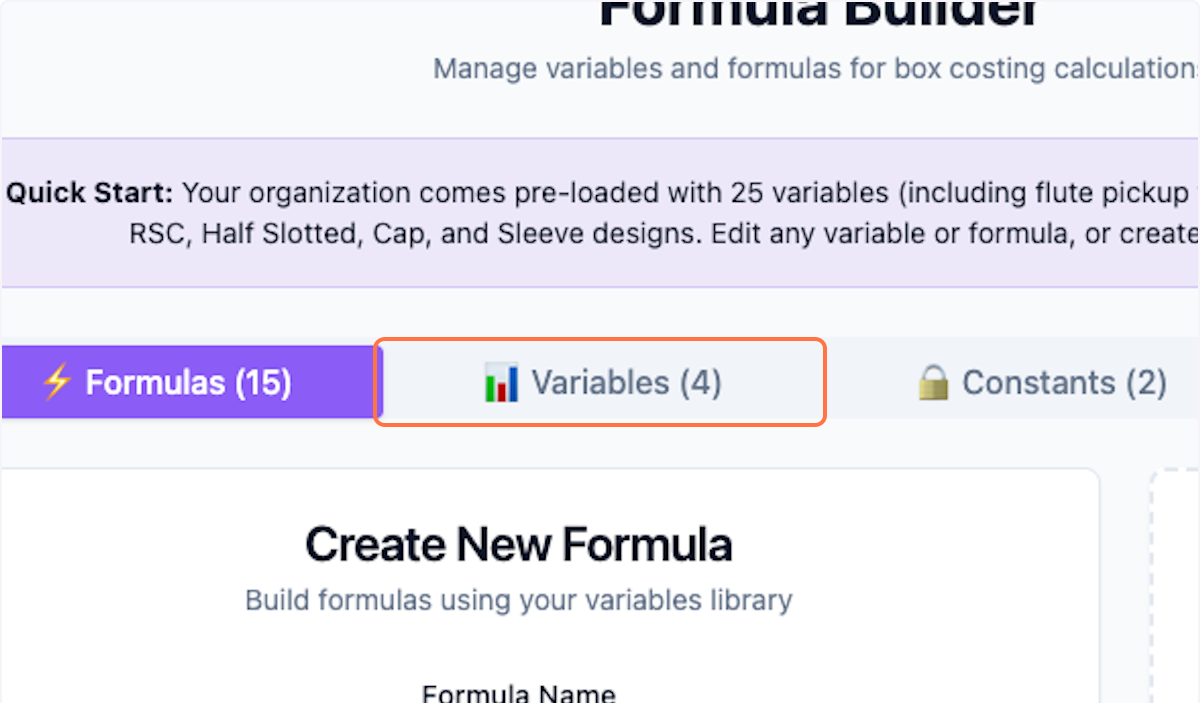
Step 2: Open Variables Tab
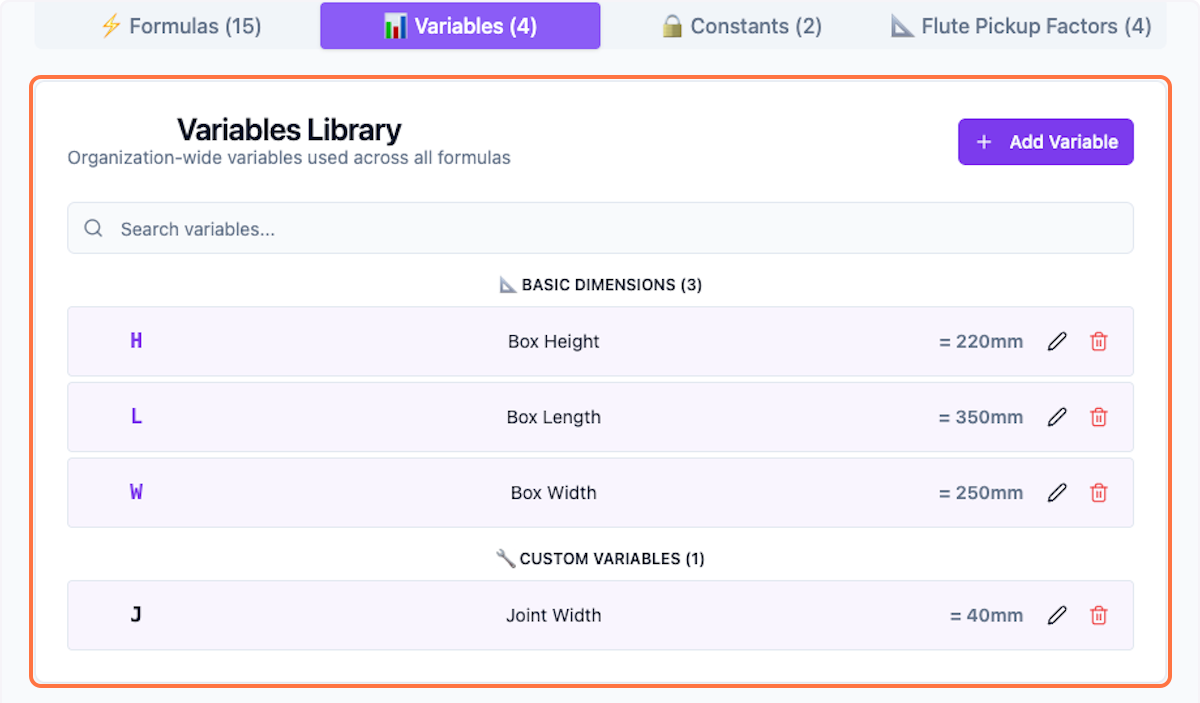
Click on Variables tab. The number indicates the total number of variables.
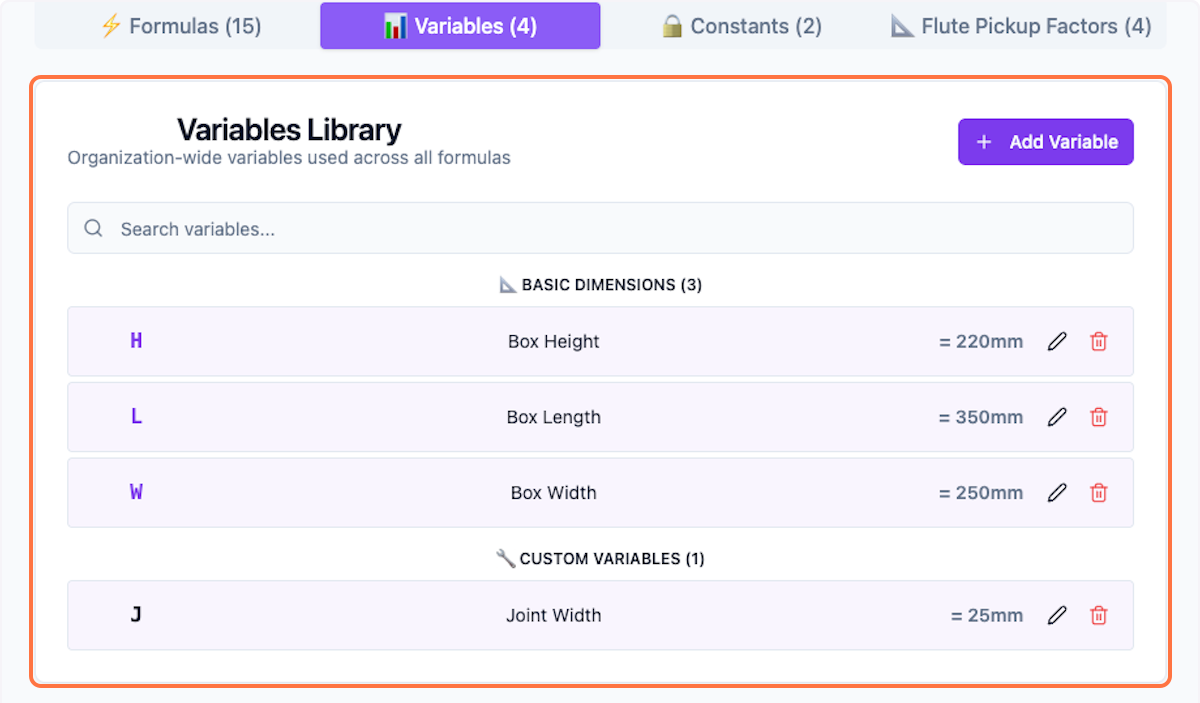
Step 3: View All Variables
View all existing variables in the system.
Editing Variables
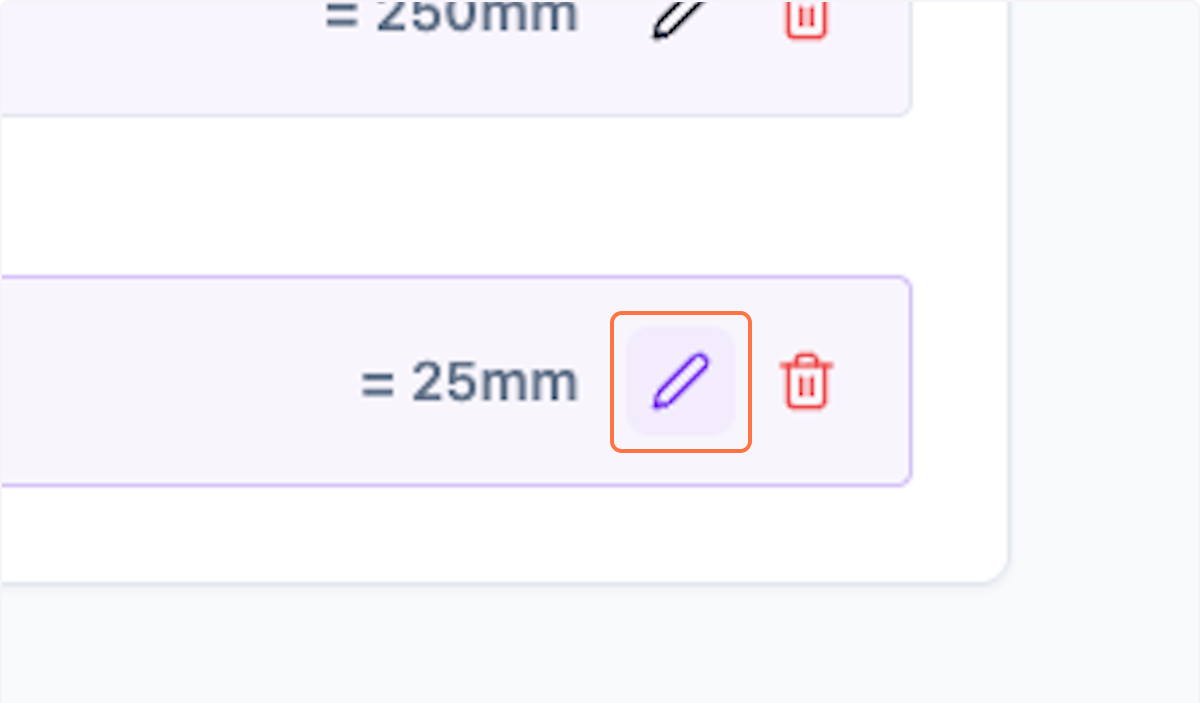
Step 4: Edit Variable
Click on the pencil icon to edit a variable.
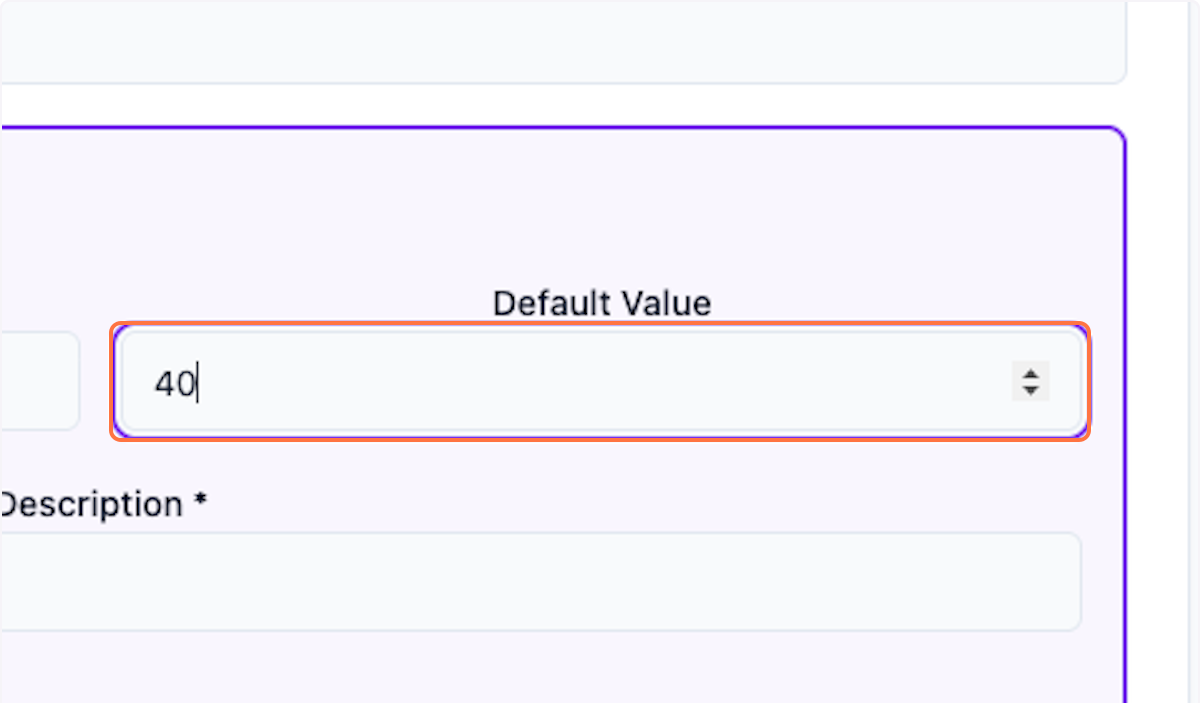
Step 5: Update Values
Update the values as needed.
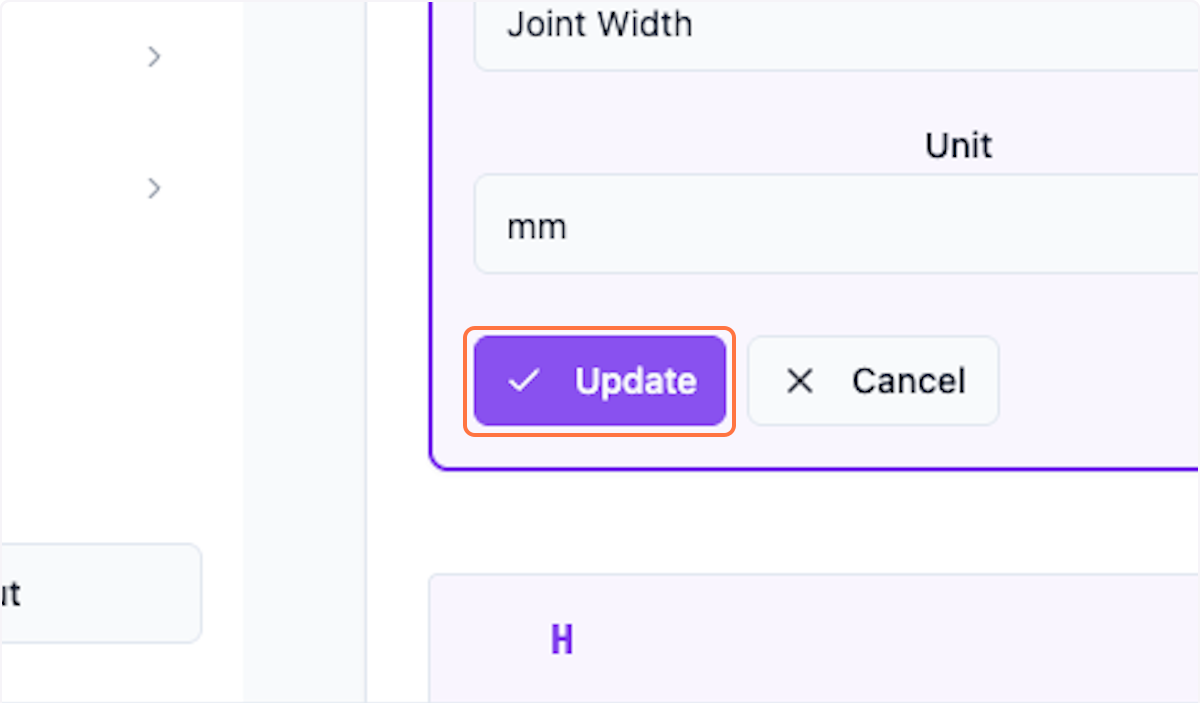
Step 6: Save Changes
Click Update to save the changes.
Creating New Variables
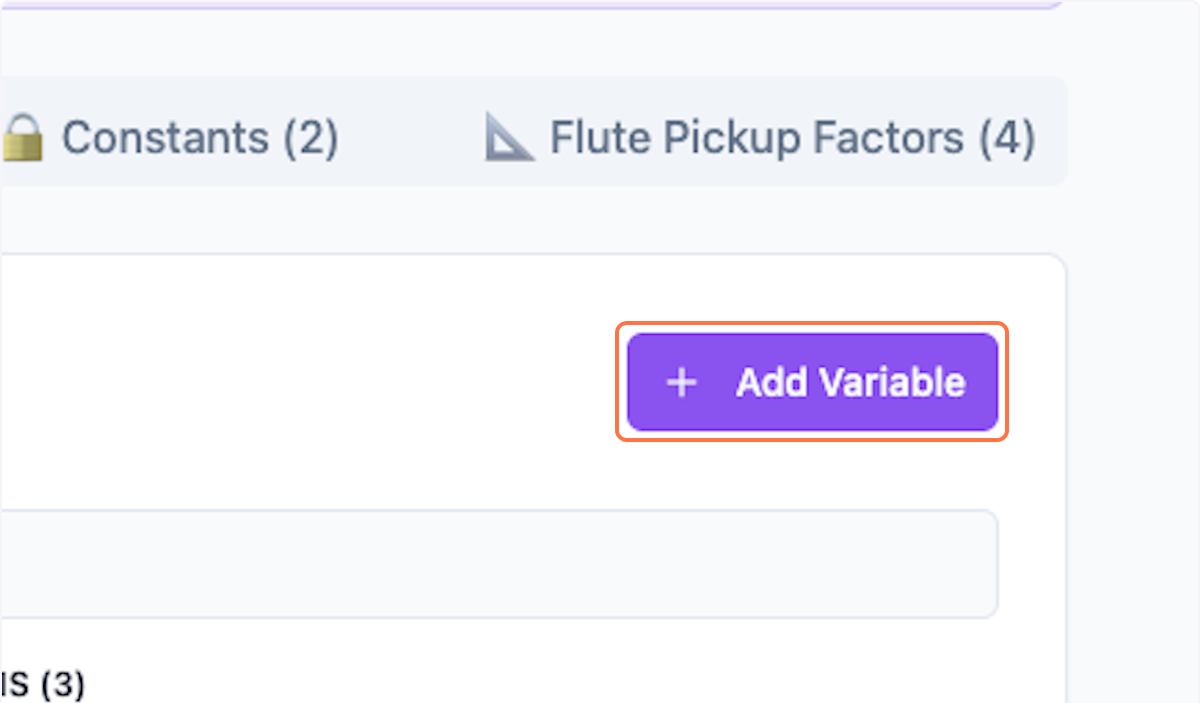
Step 7: Add Variable
Click Add Variable to create a new variable.
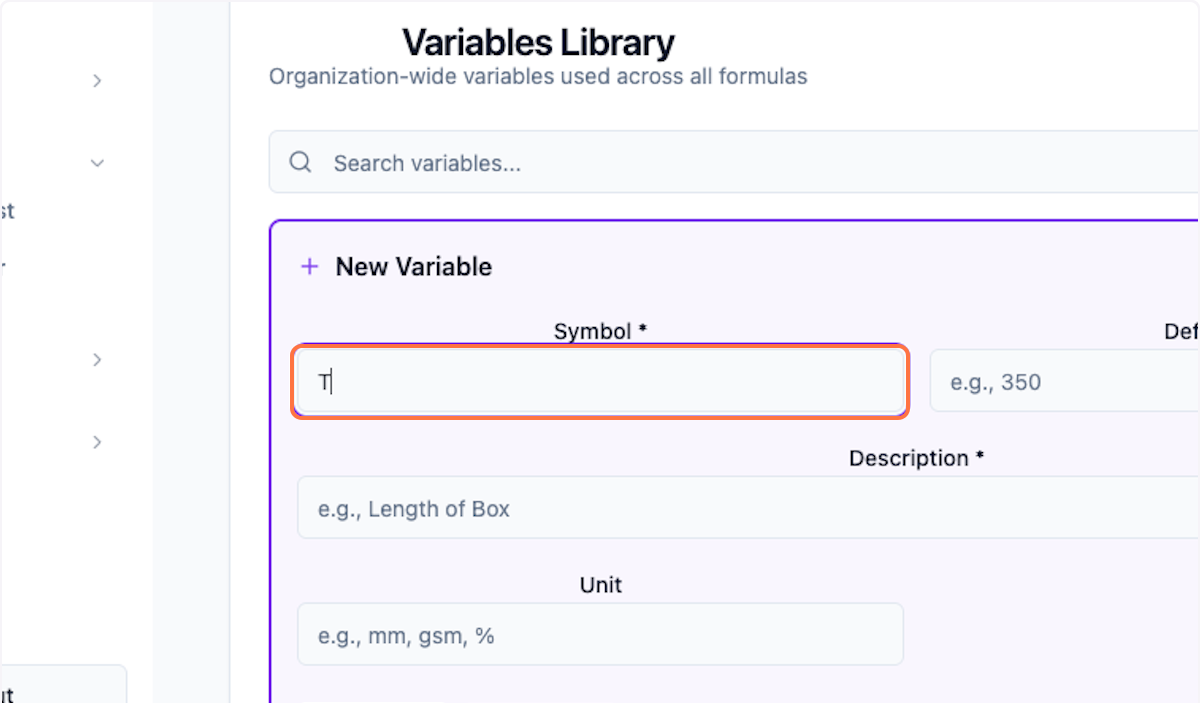
Step 8: Fill Details
Update all the fields: Symbol, Default value, Description, and Unit of measure.
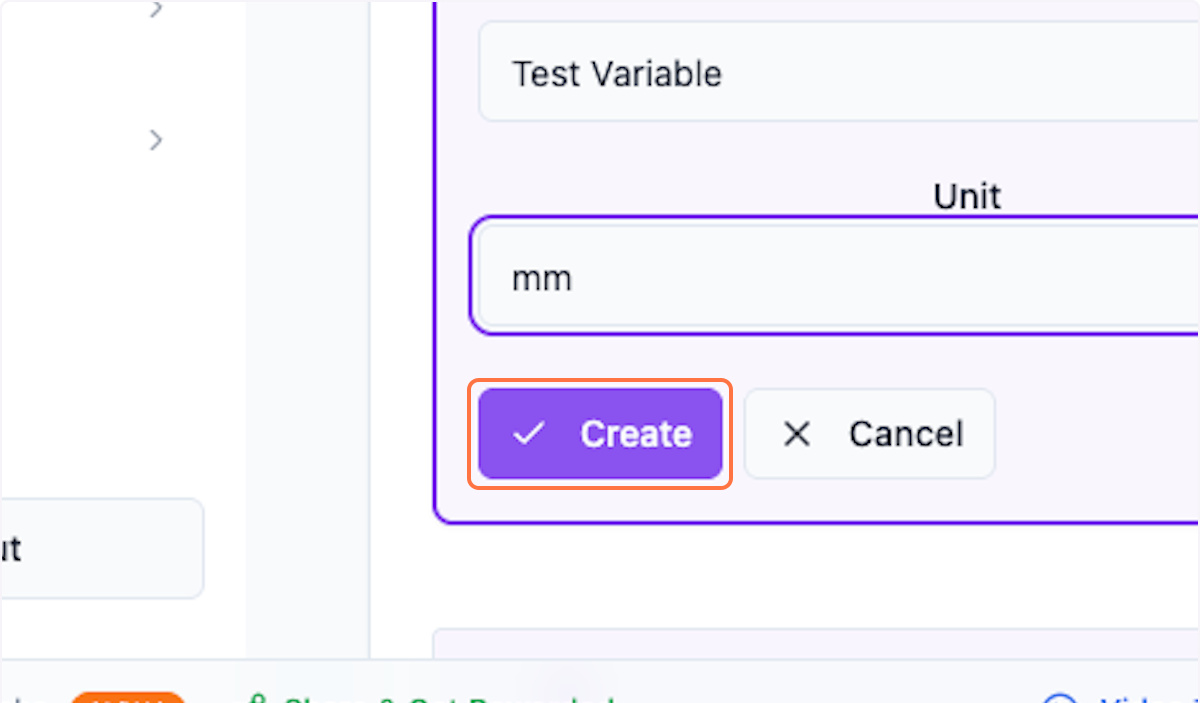
Step 9: Create Variable
Click Create to save the new variable.
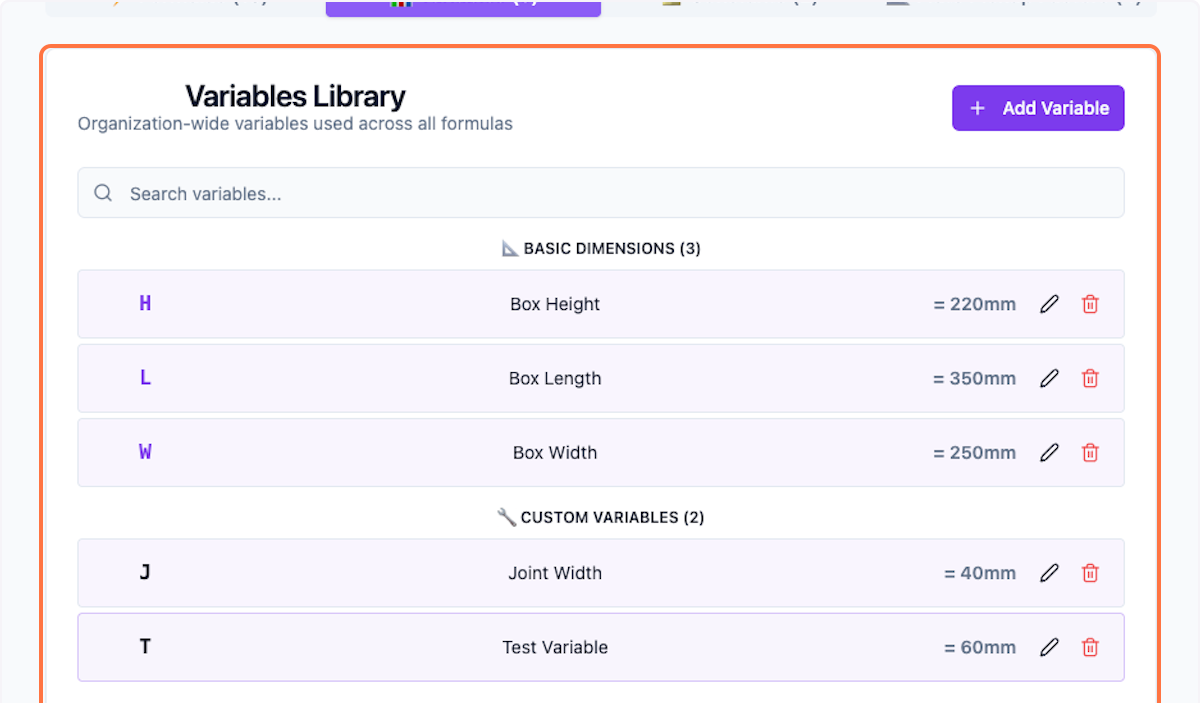
Step 10: View New Variable
You can view the new variable at the bottom of the list.
Deleting Variables
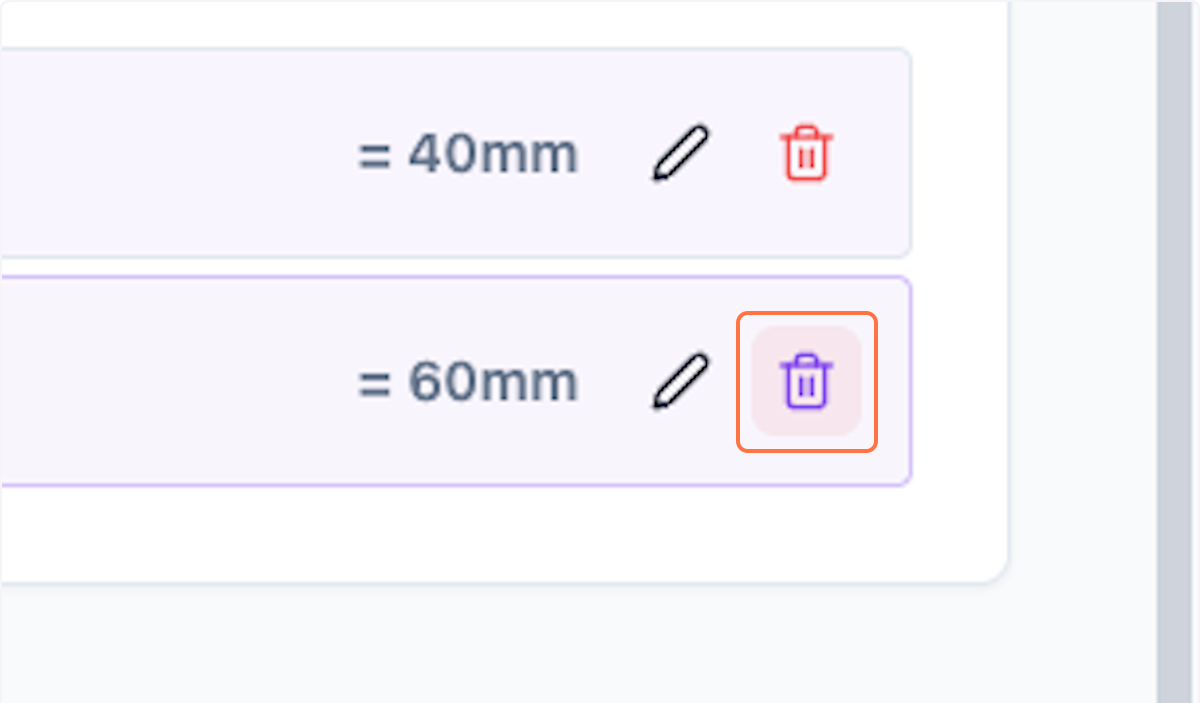
Step 11: Delete Variable
You can delete any variable by clicking the delete icon.
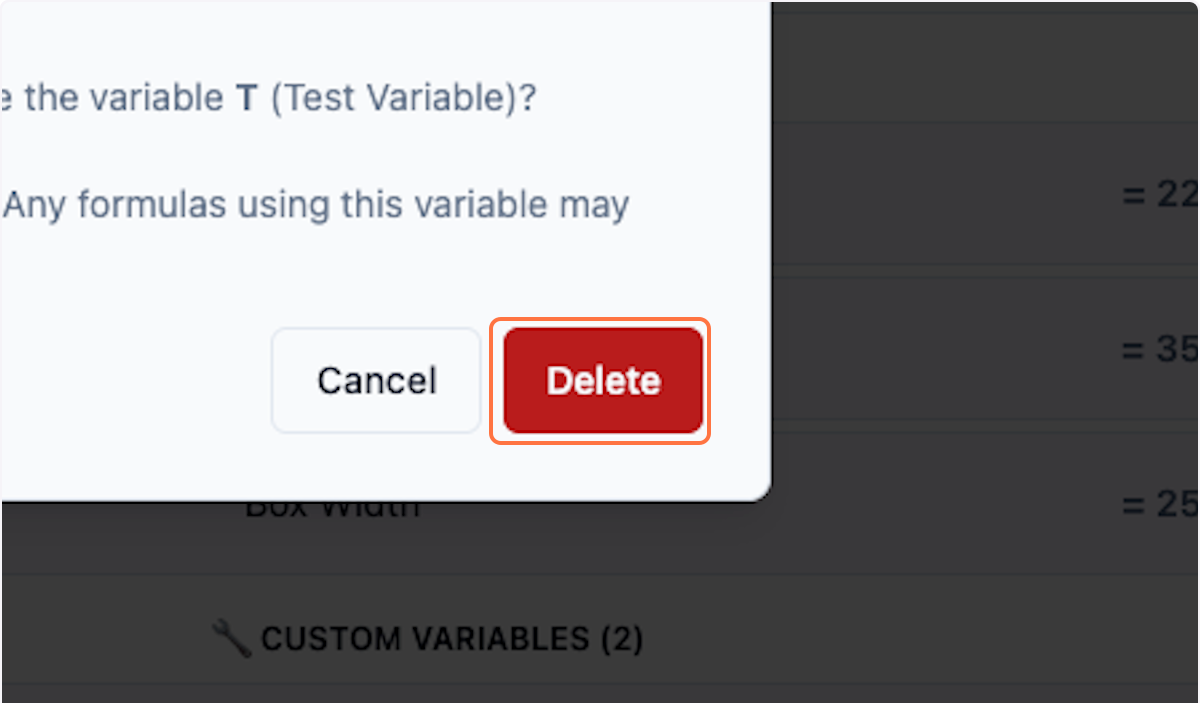
Step 12: Confirm Delete
Click Delete to confirm.
Step 13: Final List
View the final list of variables.
What's Next?
After setting up variables, you can:
- Use them in formulas
- Set up constants
- Configure flute pickup factors
Was this helpful?
Let us know if you need more help.